

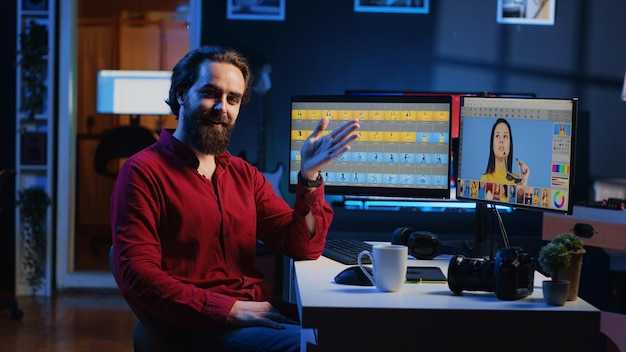
Wählen Sie zuerst fertige Hintergründe aus der Bibliothek des Editors – diese einfache Wahl verkürzt die Einrichtungszeit und sorgt in wenigen Minuten für ein zuverlässiges Aussehen.
Erfahren Sie, wie Sie den gewählten Hintergrund mit Ihrem Filmmaterial kombinieren. Lassen Sie die Szenen hinter dem Moderator ablaufen, um Tiefe zu schaffen, während Sie die Beschreibungen und Untertitel bearbeiten, um sie an die Inhalte anzupassen. Greifen Sie auf die Größensteuerungen zu, um sicherzustellen, dass die Ausrichtung zwischen Motiv und Hintergrund gut sitzt, und passen Sie dann die Farbbalance für eine natürliche Komposition an.
Laden Sie praktisch zuerst einen engen Satz von Quellvideos hoch und identifizieren Sie den besten Moment zum Wechseln der Szenen. Streben Sie eine Auflösung von 1920x1080 an, um Details gestochen scharf zu halten, und lassen Sie dann den Editor einen sanften Übergang zwischen den Ebenen anwenden. Die Beschreibungen helfen Ihnen, jeden Clip zu annotieren, was die zukünftige Wiederverwendung effizienter macht.
Zwischen den Anpassungen können Sie die fertige Sequenz in der Vorschau anzeigen, um sicherzustellen, dass die Übergänge natürlich wirken und der Moderator gut sitzt. Nutzen Sie den Editor, um Belichtung, Farbabstrahlung und Bewegung anzupassen und den endgültigen Clip für veröffentlichte Inhalte über verschiedene Kanäle hinweg vorzubereiten.
Tipp: Identifizieren Sie die ideale Beleuchtung hinter dem Motiv und passen Sie dann die Helligkeit des Hintergrunds fein an, damit der Vordergrund dominant bleibt. Die Konsistenz der Szenen über Videos hinweg hilft, ein zusammenhängendes Aussehen beizubehalten und ermöglicht Ihnen die Wiederverwendung von Inhalten über verschiedene Formate hinweg. Greifen Sie auf Voreinstellungen im Editor zu, um schnell zu skalieren, unabhängig von der Projektgröße.
Praktischer Leitfaden: Auswahl und Verwendung von HeyGen KI-Hintergründen
Empfehlung: Beginnen Sie mit einer Testversion, um mehrere Optionen zu testen, wählen Sie dann einen hochauflösenden Hintergrund, der zur Medienbeleuchtung und -farbe passt, und prüfen Sie, wie er neben dem Motiv wirkt.
Vergleichen Sie zwischen den Optionen die visuellen Elemente in Bezug auf Beschreibungen, Texturen und Beleuchtung, um festzustellen, welche Einrichtung besser zu Ihren Formaten und den Bedürfnissen Ihres Publikums passt.
Erweiterte Steuerelemente ermöglichen eine präzise Stimmungsgestaltung. Suchen Sie nach einer Option, die eine Testversion und Zugriff auf Tiefe, Unschärfe und Farbbalance bietet, um die Atmosphäre für Ihre Videos anzupassen. Das HeyGen-Ökosystem bietet eine saubere Basis für schnelle Vergleiche.
Behalten Sie bei der Arbeit an Videos die Position des Motivs bei. Verwenden Sie den Editor, um die Szene so anzupassen, dass Beleuchtung und Farbe über die Aufnahmen hinweg konsistent bleiben.
Überprüfen Sie Beschreibungen und Metadaten, um den Kontext zu verstehen, einschließlich des beabsichtigten Formats, der Zielplattform und der Sprache des Publikums.
Identifizieren Sie Farbtemperaturbereiche und passen Sie die Belichtung an, um Clipping zu vermeiden. Eine einfache Regel: warme Töne für freundliche Gefühle, kühlere Töne für formelle Gefühle.
Position ist wichtig: Platzieren Sie das Schlüsselsubjekt nach der Drittel-Regel und stellen Sie sicher, dass der Horizont gerade ist. Verwenden Sie Hilfslinien und Schnappschuss- Werkzeuge, um die Komposition zu fixieren.
Formate und Medienkompatibilität: Exportieren Sie in mehreren Formaten (MP4, MOV, WEBM) und testen Sie in verschiedenen Playern. Dies spart viel Zeit in der Postproduktion und sorgt für eine reibungslose Wiedergabe über verschiedene Geräte hinweg.
Zusatztipp: Speichern Sie einen Kernsatz von bevorzugten Looks und kombinieren Sie sie dann mit jedem Projekt, um die Bearbeitung zu beschleunigen. Behalten Sie eine kleine Bibliothek zusammen, damit Sie Schlüssel und Deskriptoren wiederverwenden können.
Automatisierung hilft: Einige Tools identifizieren Beleuchtung und Farbe automatisch und passen dann den Hintergrund an die Szene an. Überprüfen Sie das Ergebnis erneut und passen Sie es bei Bedarf manuell über den Editor an.
Sie sind bereit, den Ansatz projektübergreifend zu implementieren, Hintergründe nach Bedarf auszutauschen und die Kernbeleuchtung und Farbidentität beizubehalten.
Account-Voraussetzungen: An-/Abmeldung, Verifizierung und Plangrenzen für KI-Hintergründe
Wählen Sie den Growth-Tarif, um viele Credits, höhere Generierungslimits und eine bessere Kontrolle über Farbe und Stil für professionell aussehende Medien zu erhalten. Wenn Sie die Botschaft an die Zielgruppe anpassen möchten, wählen Sie Looks, die zu Ihren Geschichten und Wachstumszielen passen.
Melden Sie sich mit einer gültigen E-Mail-Adresse an, schließen Sie die Verifizierung schnell ab und aktivieren Sie die Zwei-Faktor-Authentifizierung. Wählen Sie einen Kontonamen, der an Ihre Zielgruppe und Bedürfnisse angepasst ist. Dies trägt zu einem klaren Branding und einem professionellen Auftritt bei.
Plangrenzen: Starter gewährt 100 Credits monatlich, bis zu 5 Sitzungen, 720p-Ausgabe; Growth gewährt 1000 Credits monatlich, bis zu 40 Sitzungen, 1080p; Professional gewährt 5000 Credits monatlich, unbegrenzte Sitzungen, 4K-Ausgabe. Einige Teams erkunden weitere Optionen, einige wünschen höhere Qualitätsergebnisse, und ihre Budgets bestimmen die gewählte Stufe.
Kreditnutzung und -betrieb: Jede Generierung verbraucht 1–3 Credits, abhängig von der Qualität der Voreinstellung; höhere Farbtiefe oder Stilbearbeitungen kosten mehr. Sie können eine Szene jederzeit ersetzen; dies hält den Look markenkonform und erhöht das Engagement des Publikums. Nutzen Sie die enthaltenen Tools, um Farbe, Stil und Medienmetadaten zu bearbeiten; dieser Generator unterstützt Farbschemata, und die von Ihnen übermittelte Botschaft ist für das Engagement wichtig.
KI-Hintergründe aktivieren und die richtige Vorlage auswählen

Definieren Sie zuerst den Kontext und die Zielgruppe; wählen Sie eine Vorlage, die Stimmung und Stil entspricht; führen Sie einen Test mit mehreren Optionen durch, um Qualität, Farbbalance und Zeit für eine Podcasting-Episode zu vergleichen. Schnelle Entscheidungen ergeben sich aus konkreten Kriterien und getesteten Assets, nicht aus Rätselraten.
Testen Sie einfach drei Optionen, um schnelle, datengesteuerte Entscheidungen zu treffen und das Risiko für begrenzte Testzyklen in Teams zu minimieren.
- Kontext-Framing: Definieren Sie Szene, Zielgruppen und Bedürfnisse; legen Sie fest, wie der Episodenkontext die visuellen Elemente prägt; stellen Sie sicher, dass 1080p-Desktop-Rendering und 720p-Mobile-Fallback vorhanden sind; planen Sie sichere Zonen für Overlays und Untertitel, damit die Medien lesbar bleiben.
- Farbe und Stimmung: Legen Sie eine Farbpalette fest, die zur Stimmung passt (hell für Energie, gedämpft für Autorität); begrenzen Sie die Farbvielfalt, um Ablenkungen zu vermeiden; überprüfen Sie die Farbgenauigkeit unter typischen Lichtverhältnissen, um die Qualität zu schützen.
- Vorlagenauswahl: Wählen Sie Vorlagen nach Stimmung, Stil und Kontext aus; berücksichtigen Sie das Genre (Bildung, Interview, Unterhaltung) und die Umgebung; verwenden Sie Auswahl, um drei Optionen zu vergleichen und schnelles Feedback von mehreren Kreativen gemeinsam zu sammeln.
- Zugriff und Zeit: Stellen Sie den einfachen Zugriff auf Assets sicher; streben Sie eine schnelle Integration und begrenzte Bearbeitungen an; organisieren Sie eine gemeinsame Bibliothek, damit Teams Assets schnell finden können.
- Pfad zur Anpassung: Übernehmen Sie benutzerdefinierte Assets; passen Sie Überlagerungen und Branding an; verwenden Sie schriftliche Beschreibungen, um die Erstellung von Assets anzuleiten; stellen Sie sicher, dass Assets erstellt werden, um generische zu ersetzen, wenn nötig.
- Test und Validierung: Führen Sie einen Test mit echten Medien durch; vergleichen Sie die Ergebnisse hinsichtlich der Wahrnehmung des Publikums und der Klarheit; sammeln Sie Feedback von mehreren Kreativen gemeinsam; beurteilen Sie die Passform des Kontexts und die Gesamtqualität.
Die Abstimmung der visuellen Elemente mit der Erzählung erfordert klare Beschreibungen und einen konsistenten Stil; verwenden Sie schriftliche Beschreibungen, um die Erstellung von Assets anzuleiten, und halten Sie Ersatzoptionen für schnelle Änderungen bereit. Echte Medien, die während der Tests verwendet werden, stellen sicher, dass das Endergebnis den Bedürfnissen entspricht und ein starkes Podcasting-Programm unterstützt.
Ersatzplan: Wenn eine Szene fehlt, können Ersatzassets Lücken füllen; halten Sie Farbe und Stimmung konsistent; vorbereitete Assets ermöglichen schnelle Aktualisierungen über Episoden hinweg; Tests mit echten Medien bestätigen die Übereinstimmung mit den Bedürfnissen.
Hochladen Ihres Filmmaterials vs. Bezug von Stock-Hintergründen
Beginnen Sie mit einem Test, der zwei Routen vergleicht: das Hochladen Ihres eigenen Filmmaterials vs. das Nehmen von Stock-Szenen. Bewerten Sie die Klarheit der Botschaft, das Tempo und die Emotion im Vergleich zum Kontext des Podcasting und Ihren Bedürfnissen.
Stock-Szenen liefern zuverlässige Konsistenz: Wählen Sie Assets in hoher Auflösung, um Unschärfe zu minimieren; stellen Sie sicher, dass Sie in 1080p oder 4K exportieren können, und bestätigen Sie die Lizenzbedingungen vor der Auswahl.
Das Hochladen von benutzerdefiniertem Filmmaterial ermöglicht die vollständige Kontrolle über Look und Stimmung; bearbeiten Sie es, um es an Beleuchtung, Farbe und Kontext anzupassen; verwenden Sie eine subtile Farbkorrektur, um Zuschauer nicht abzulenken; dieser Weg unterstützt kreative Ziele und verbessert die narrative Kohärenz.
Wechseln Sie zwischen den Optionen, um die Auswirkungen zu vergleichen; testen Sie zwischen einigen Stock-Clips und Ihrem eigenen Filmmaterial; stellen Sie sicher, dass der gewählte Weg mit der Botschaft und der Zielgruppe übereinstimmt.
Praktische Tipps: Bei der Integration auf HeyGen beginnen Sie im Test, wählen Sie Assets, die Ihrer Auflösung entsprechen, und prüfen Sie auf Unschärfe nach dem Skalieren; erwägen Sie einen hybriden Ansatz, um Zeit zu sparen und die Bedürfnisse zu erfüllen.
Exportieren Sie einen sauberen Endschnitt: Exportieren Sie in der Zielauflösung, vermeiden Sie starke Komprimierung, speichern Sie in hoher Auflösung für zukünftige Anpassungen; es gibt Raum, Verbesserungen über Episoden und Wiedergabelisten hinweg zu entdecken.
Feinabstimmung von Beleuchtung, Farbkorrektur und Kamerabewegung passend zur Szene
Stellen Sie das Key Light auf 5200 K ein, positionieren Sie ein Fülllicht mit etwa 1–2 Blendenstufen unter dem Key Light und fügen Sie ein Gegenlicht hinzu, um das Motiv abzutrennen. Verwenden Sie Abblender, um Streulicht zu schneiden und eine saubere Kante zu erhalten. Überprüfen Sie die Belichtung mit einer Wellenform; stellen Sie die Farbtreue sicher, damit Hauttöne korrekt wiedergegeben werden. Passen Sie den Look an das an, was die Zielgruppe mag. Dieser Ansatz unterstützt Ihre Schnittarbeit und hält die Stimmung im Einklang mit dem Publikum. Farbkorrektur: Nehmen Sie den Weißabgleich der Szene aus einem repräsentativen Frame, wenden Sie dann eine ausgewogene LUT an, um sie über die Clips hinweg abzugleichen. Bewahren Sie natürliche Hauttöne, indem Sie den Lift moderat und die Gammakorrektur neutral halten; verschieben Sie die Grüntöne leicht, wenn die Stimmung eher in Richtung Outdoor- oder Waldszenen geht. Passen Sie den grünen Kanal vorsichtig an, wenn die Szene Pflanzenmaterial enthält. descript notes protokolliert die genauen Farbeinstellungen und die Begründung, damit Teammitglieder die Änderung verstehen. Der Effekt sind sanftere Übergänge zwischen den Aufnahmen und ein zusammenhängender Ton über Videos hinweg für das Projekt. Kamerabewegung: Bevorzugen Sie langsame, kontrollierte Bewegungen. Verwenden Sie ein Gimbal für einen sanften Dolly zwischen 6–12 cm pro Sekunde oder einen geschmeidigen Schwenk von 5–15 Grad pro Sekunde; halten Sie den Horizont gerade und sperren Sie die Parallaxe, damit sich der Vordergrund natürlich an die Szene anbindet; vermeiden Sie abrupte Verschiebungen, die die Zuschauer aus der Immersion reißen. Wenn das Projekt eine düstere Stimmung widerspiegelt, halten Sie die Palette zurückhaltend. Synchronisieren Sie Aktionen auf der Zeitachse mit den narrativen Beats. Vorschau für das Publikum, überprüfen Sie die Stimmung auf verschiedenen Geräten und passen Sie die Lesbarkeit von Untertiteln und die Wortgeschwindigkeit an. descript notes erfassen die Entscheidungen und ermöglichen es Teammitgliedern, Alternativen zu experimentieren, damit sie zusammenarbeiten können. Dies ermöglicht schnellere Anpassungen durch die Editoren. Eine einfache Checkliste verifiziert Quellen und Projektanforderungen: Quelle des Originalmaterials und die Änderungen. ### Exporteinstellungen: Auflösung, Bildrate, Codecs und plattformspezifische Optionen Exportieren Sie in 1920x1080, Bildrate 30fps, MP4-Container, Codecs H.264 oder H.265; stellen Sie einen Ausgabe ohne Wasserzeichen sicher, damit das Projekt für die Veröffentlichung auf verschiedenen Bildschirmen bereit ist. Wählen Sie für plattformspezifische Optionen Seitenverhältnisse, die zum Ziel passen: 16:9 für die meisten Feeds, 9:16 für mobile Clips oder 1:1 für Grid-Posts. Zielen Sie auf 1080p, wenn Sie bereit für veröffentlichte Inhalte sind; wechseln Sie in benutzerdefinierten Voreinstellungen zu 4K (3840x2160), wenn das Projekt zusätzliche Details benötigt. Bewahren Sie das Bewegungsbalance, um die Szenenemotion zu erhalten, während Sie Stockmedien verwenden, wo zutreffend, und stellen Sie sicher, dass die endgültigen Medien hinter Untertiteln zugänglich bleiben. Codecs und Qualität: Priorisieren Sie das Gleichgewicht zwischen Qualität und Größe. H.264 bietet breiten Zugriff auf verschiedene Bildschirme; H.265 reduziert die Dateigröße bei gleicher Qualität. MP4 bleibt der beste Container für veröffentlichungsfertige Medien. Audio mit 128 kbps AAC sorgt für klare Dialoge oder Erzählungen; halten Sie die Gesamtbitrate bei etwa 8–12 Mbps für 1080p oder 25–40 Mbps für 4K bei schnellen Aktionen. Wenn in einem Test Artefakte auftreten, passen Sie den Farbraum und die Luminanz an, um die Szene gut belichtet zu halten. Tipps für den Export-Workflow: Führen Sie frühzeitig im Projekt einen Testexport durch, halten Sie das Material im Projektordner organisiert und aktivieren Sie automatische Prüfungen, die die Integrität der Datei nach der Aufnahme und Speicherung überprüfen. Verwenden Sie nur das Nötigste, um schnell auf die finale Datei zuzugreifen; streben Sie schnelle Uploads auf die Plattform an und überprüfen Sie, ob das Ergebnis wasserzeichenfrei ist, bevor Sie es teilen. Bereitschaft zur Veröffentlichung: Überprüfen Sie, ob Auflösung und Seitenverhältnis mit dem Zielbildschirm-Layout übereinstimmen; speichern Sie eine benutzerdefinierte Voreinstellung pro Projekt zur schnellen Wiederverwendung. Sammeln Sie nach den ersten veröffentlichten Beiträgen Feedback und verfeinern Sie dann Qualität und Zugänglichkeit basierend auf deren Bedürfnissen, um den Weg vom Entwurf zum veröffentlichten Medium zu verkürzen.| Plattform | Seitenverhältnis | Auflösung | Bildrate (fps) | Codecs | Container | Notizen |
|---|---|---|---|---|---|---|
| Allgemein (die meisten Ziele) | 16:9 | 1920x1080 oder 3840x2160 | 30 oder 60 | H.264; H.265 | MP4 | Wasserzeichenfrei; bereit zum Upload; geeignet für veröffentlichte Medien |
| Instagram-Feed | 1:1 oder 4:5 | 1080x1080 oder 1080x1350 | 30 | H.264; H.265 | MP4 | Quadratische oder Hochformat-Grid; sichere Zone beachten |
| TikTok / Reels | 9:16 | 1080x1920 | 30 | H.264; H.265 | MP4 | Vertikales Format; wesentliche Inhalte innerhalb von 1080x1700 halten |
| Facebook / LinkedIn | 16:9 | 1920x1080 oder 1280x720 | 30 | H.264 | MP4 | Kurzform; wasserzeichenfrei; untertitelfreundlich |
| Benutzerdefiniert / pro Projekt | Variabel | Bis zu 4K | 24–60 | H.264; H.265 | MP4 | Benutzerdefinierte Voreinstellungen zur Anpassung an Bedürfnisse; sicherstellen, dass Stockmedien zur Szene passen |




