
Building an AI Avatar means creating a digital version of a person that looks and sounds like them. When the result is someone who only vaguely resembles the original, the issue is rarely the tool — it's the order of steps and the quality of the reference data. That's why the workflow is built as a sequential pipeline: first you assemble a Character Sheet, then you produce short-form talking-head videos, then you add B-roll, and only after that do you scale the result into long-form YouTube content.
Both images and Sound matter in this approach. An AI Avatar without an accurate voice loses credibility fast, and a weak base of reference data brings down the quality of downstream videos. The main principle is simple: first lock in the appearance, then the voice, then the editing format, and only after that — scaling.
The 4-Step Workflow has four atomic steps:
- generation of realistic still images;
- creation of short-form talking-head videos;
- adding cinematic B-roll for ads and stories;
- moving the result into long-form YouTube content.
For this approach, the most common tools are Higgsfield, HeyGen, and ElevenLabs. Higgsfield is used for images, videos, and voice clone. HeyGen handles long-form avatars. ElevenLabs is needed when you want a high-quality voiceover and a Professional Voice Clone.
Step 1. Character Sheet
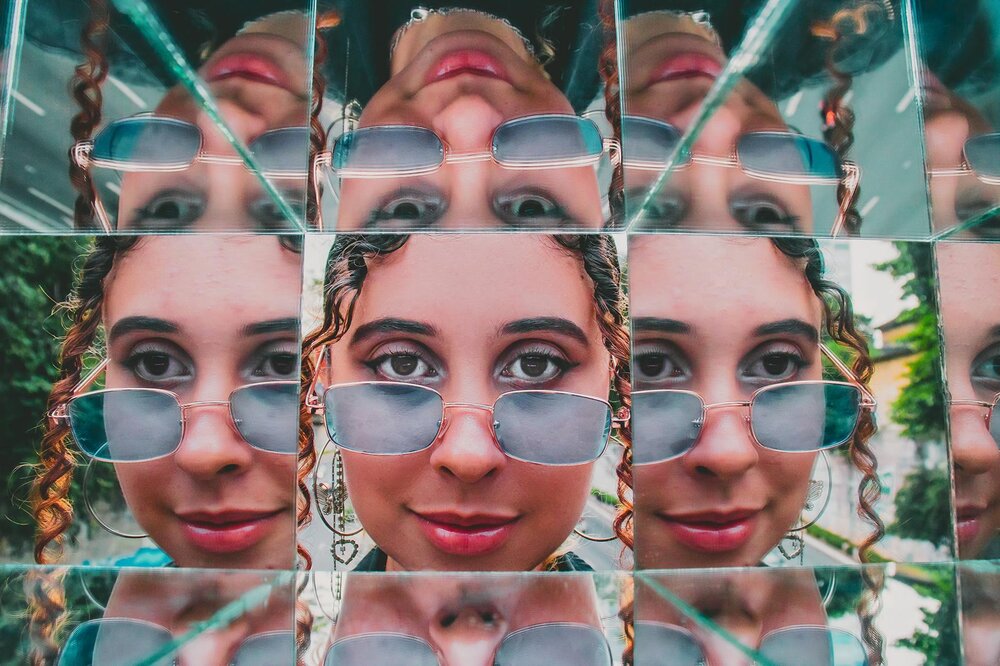
A Character Sheet is a small set of images that teaches a model what a person looks like. In this block the AI Avatar gets its visual foundation, and Soul ID and Nano Banana solve different parts of one workflow.
Nano Banana is used for generating realistic still images and for sheet-generation. The practical scenario is simple: you upload one well-lit photo, write a prompt with multiple angles, full body, and a neutral background, and you get a set of images that already captures recognizable details of face and clothing. It works well when you need to quickly assemble a starter Character Sheet inside Higgsfield.
Soul ID is an identity-locking feature in Higgsfield. It works more precisely when it receives 15–20 photos in different poses, lighting setups, and outfits. The link here is direct: Soul ID needs varied reference data, and that variety raises the accuracy of the AI version of the person.
If you don't have many ready photos, use the prompt-pack approach. First write 20 pose descriptions — close-up, side angle, full body, talking, walking, sitting. Then generate each one through Nano Banana and feed them back into Soul ID as a training set. The Character Sheet stops being a random batch of frames and becomes a controlled base for stable identification.
Once Soul ID is locked in, you can change clothing, light, background, and camera angle without losing the face. That matters when you need an AI Avatar that looks like the same person across different scenes, rather than a set of similar-looking characters.
Step 2. Short-Form Talking Heads
After still images, the workflow moves into video. At this stage the AI Avatar becomes short-form talking-head video for Instagram, TikTok, and YouTube Shorts.
Kling 3.0 is used to turn still images into video. It takes a start frame and a prompt with camera direction, subject action, and environment. This is the key combination: first you set the source frame, then describe the motion, then lock the scene. If those three elements are written clearly, the result looks noticeably more natural.
The working scheme:
- create a still image in the right setting — at a desk, in a gym, in a kitchen;
- upload the frame into Kling 3.0 as a start frame;
- write a prompt that separately states camera direction, subject action, and environment.
An example might look like this: Fixed camera. Man looks directly at camera, says with sharp conviction: "You can now build professional websites in minutes." Both hands rise off the desk on the word "professional." Camera, subject, and action are stated separately, so Kling 3.0 has an easier time assembling the scene without extra improvisation.
Duration is best matched to the line. For a short phrase, about six seconds is usually enough. But the video runs into a separate problem: the voice often doesn't match the original person.
There are two ways to fix the Sound:
- Higgsfield offers a built-in voice changer for quick voice replacement. You train a clone on roughly two minutes of speech and run the video through the changer. It's a quick path with a good but not perfect result.
- A Professional Voice Clone is built in ElevenLabs. It uses up to 30 minutes of training audio, the voiceover is then generated separately and synced back through the lip-sync tool in Higgsfield.
The link here matters: voice clone improves how closely the AI Avatar's voice matches the original person. If the face looks convincing but the voice sounds alien, the illusion breaks. In the working process, voice often matters more than the picture.
For multi-angle short-form, you can build two related still images — a frontal shot and a slightly side angle. Then use them as start and end frames in Kling. This order gives a more natural transition and removes the feeling that the video was simply pieced together from random generations.
Step 3. Cinematic B-Roll
B-roll makes short-form videos feel like real production. Without it, AI avatars often look like a static talking-head draft rather than a finished ad or storytelling piece.
For product B-roll, especially in ads, the workflow goes like this:
- take a Character Sheet and a product reference photo;
- generate scenes where the AI Avatar interacts with the product — holds it, opens it, shows it;
- animate the scene in Kling using the structure camera + subject + action + environment + lighting.
Example prompt: Fixed camera. Subject (man) holds the climbing chalk bag close to the lens, shows it to the camera, gives a small thumbs up. Climbing gym in background, climbers on the wall. Natural overhead light. No dialogue.
The first three blocks — camera, subject, action — are mandatory here. The rest help when the result feels too generic. This isn't a trick for effect, but a way to give the model a more accurate guide for the scene.
For story-driven cinematic B-roll, use Higgsfield Soul, Nano Banana 2, and Cinema Studio together. Higgsfield Soul builds the base still from a reference image with the right pose and style. Nano Banana 2 refines the image while keeping the face: you can change clothing, background, or framing without breaking identity. Then Cinema Studio animates the scene, and Multishot Manual lets you describe up to three sequential scenes inside a single 10-second clip.
This is how you get shots where someone walks past a window, looks at their phone, and reacts — all in one continuous scene. Each fragment is set separately but rendered as a single clip. It's especially useful when you need an AI version of a person in a more cinematic format.
At this stage, iteration matters. AI generation works statistically: the result rarely hits the mark on the first try. You usually need to make 30–50 variations, compare them, and assemble the best version by hand. The quality of downstream videos depends directly on reference quality.
Step 4. Long-Form YouTube Avatars
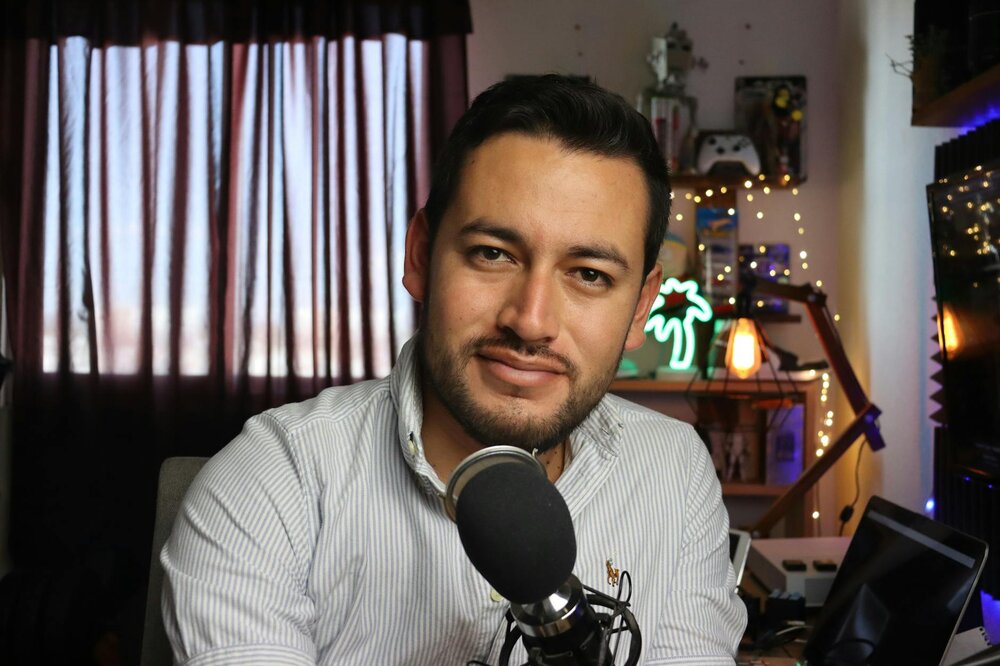
When the format needs to be 5–20 minutes, the workflow moves into HeyGen. Here HeyGen is used for long-form avatars and renders a talking head with realistic mouth movement and head sway.
The basic scenario:
- take a screenshot of the person, not a video;
- upload it to HeyGen;
- connect a voice clone or a fresh ElevenLabs voiceover;
- choose Avatar 4 and landscape full-screen;
- start the generation.
The result is an AI Avatar that looks like a long talking-head clip, not a short test piece. That's the way to scale the same character into a YouTube format without constant re-shoots.
There's also a more flexible option. First, in Nano Banana, change the background with a prompt like "place subject in an aquarium, adjust lighting accordingly," then animate the new image in HeyGen. That way you can change locations without re-recording.
The most flexible method is full control over the background:
- in Nano Banana, replace the background with pure green and leave the foreground untouched;
- in HeyGen, render a talking version of yourself on a clean green screen;
- in CapCut, use auto background removal and drop in any video behind you.
This order lets you be in a coffee shop, a stadium, an aquarium, or even in space without leaving your desk. The point isn't the effect itself — it's that the AI Avatar remains the same person while the surroundings change to fit the task.
What to Remember
Reference data affects the result in a chain. A weak Character Sheet creates weak videos, and weak videos drag down long-form avatars. Step 1 can't be skipped or done halfway.
Voice is just as critical. Even a well-built AI Avatar loses trust if the voice sounds robotic. If the task is serious, a Professional Voice Clone in ElevenLabs gives a stronger base for voiceover.
The point of the workflow is that the setup work is done once, and after that the system starts working like a production guide. You don't need a studio, microphone, or camera operator on every new clip. You need order, accurate prompts, quality reference data, and a willingness to iterate.
If you need the exact set of prompts for Character Sheet, multi-angle, Kling structure, and Cinema Studio multishot, they're usually kept in a separate resources section. But the basic principle stays the same: first lock in the face and voice, then build videos, and only after that scale AI Avatars into a stable content pipeline.




