
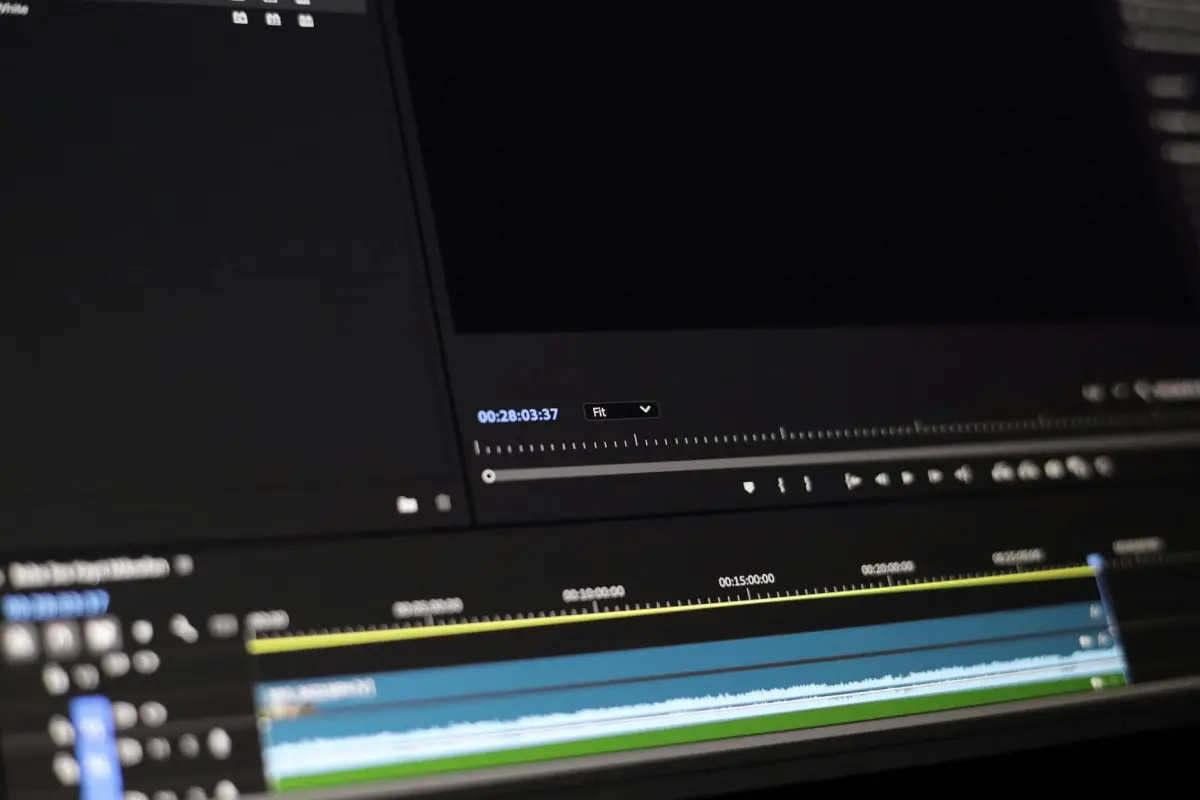
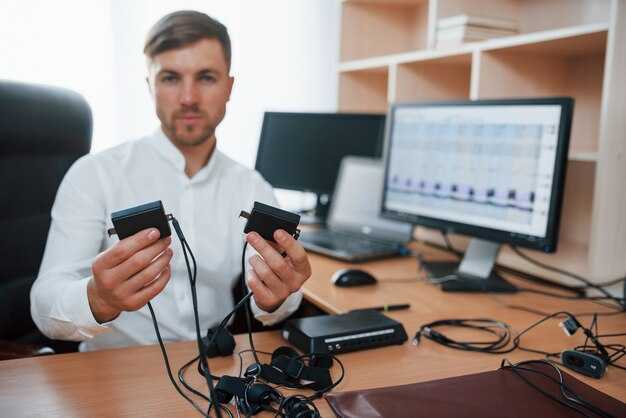
ابدأ بضبط إزاحة التوقيت في عناصر التحكم المضمنة لمواءمة الصوت مع إطارات الفيلم. في معظم المنصات، انقر بزر الماوس الأيمن على سطح المشغل للكشف عن شريط تمرير التأخير، ثم قم بتعيين إزاحة أولية تتراوح بين -50 ميلي ثانية إلى +150 ميلي ثانية، ثم أعد الاختبار باستخدام بعض المقاطع للتأكد من تزامن التشغيل.
هناك طرق مختلفة لمعالجة الانحراف في حالات مختلفة: استخدم الإزاحات المضمنة، أو قم بتطبيق برنامج خارجي، أو قم بتحسين معلمات الإرسال لدفقات الإنترنت. إذا ظل الصوت الخلفي غير متوافق بعد اختبار محلي، فاختر طريقة أخرى تعطي الأولوية لمحاذاة التوقيت، ثم اختبر مرة أخرى بالمقاطع للتحقق من التحسين. هناك، قم بتسجيل النتائج في جدول بسيط لمقارنة الانحراف عبر الطرق.
أولاً، اتبع تسلسلاً خطوة بخطوة للتأكد من المحاذاة: تحقق من التوقيت مقابل الإطارات في مقطع قصير، ثم اضبط باستخدام خيار النقر بزر الماوس الأيمن أو اختصار لوحة المفاتيح لتطبيق إزاحة دقيقة. إذا كانت وحدة برمجية تعمل في الخلفية، فقم بإيقاف تشغيلها مؤقتًا أثناء الاختبار لتجنب التداخل، ثم أعد الاختبار بالمقاطع للتأكد من بقاء التوقيت متزامناً.
في الممارسة العملية، تتطلب الحالات المختلفة معالجة محددة: عند البث، ركز على زمن الاستجابة للإرسال؛ عند العمل في وضع عدم الاتصال، اعتمد على عناصر التحكم المضمنة، أو البرامج، أو أدوات خارجية. أولاً، قم بإيقاف مؤقت للعمليات الأخرى التي قد تستهلك دورات وحدة المعالجة المركزية؛ ثم اختر طريقة تحافظ على الانحراف في حده الأدنى عبر جميع المقاطع. إذا استمرت المشاكل، فجرب برنامج ترميز مختلفًا أو اضبط معدل البت للبث لتحقيق استقرار أكبر في التوقيت.
هناك، احفظ التكوين كملف تعريف لتطبيقه لاحقًا؛ فقط اختر خط أساس مستقر عبر جميع المقاطع؛ احتفظ بمجموعة صغيرة من مقاطع الأفلام للتحقق من أن الانحراف يظل في حده الأدنى. تضمن الفحوصات المنتظمة اتساق التوقيت عبر المنصات والجلسات.
دليل عملي لمزامنة الصوت-الفيديو
ابدأ بتوصية ملموسة: قم بتشغيل تسجيل مدته 5-10 ثوانٍ من نفس المصدر؛ قم بقياس ما إذا كانت الإيقاعات متوافقة مع المرئيات الظاهرة على الشاشة؛ إذا فشلت المحاذاة، فاضبط التأخير ضمن مسار الصوت والفيديو.
استخدم نهجًا خطوة بخطوة لمعايرة سريعة، مع التركيز على أصغر تغيير ينتج عنه تطابق مثالي.
في هذه الصفحة، اقرأ قائمة تدقيق مختصرة تقلل من التجارب والأخطاء؛ عادةً ما يكمن السبب الجذري في اختلافات الساعة بين المصادر.
- مطابقة معدلات الإطارات: يجب أن تشترك كلا الدفقات في نفس معدل الإطارات في الثانية؛ إذا لم يكن الأمر كذلك، فقم بإعادة ترميز ملف واحد إلى معدل الإطارات المستهدف (24، 25، 30، 60).
- معايرة التأخير: في المحرر، قم بإزاحة مسار الصوت والفيديو بزيادات تتراوح بين 10-20 ميلي ثانية؛ اختبر بإشارة بسيطة في مقطع اختبار؛ لاحظ ما إذا كانت المرئيات تتوافق مع الإيقاعات؛ حافظ على توثيق التغييرات.
- استخدم المزامنة التلقائية حيثما توفرت؛ إذا لم يكن الأمر كذلك، فقم بتطبيق إزاحة يدوية على المخطط الزمني؛ أعد التحقق عبر بعض المقاطع للتأكد من الاتساق.
- تقييم مصادر الانحراف: إذا انحرف تزامن الشفاه أثناء مشهد، فابحث في التخزين المؤقت، وتأخيرات الترميز، وسلسلة التشغيل؛ عزلها إلى مكون واحد قبل تطبيق التصحيح.
- الإعدادات المسبقة والملفات الشخصية: احفظ إعدادًا مسبقًا مطابقًا للمشاريع المستقبلية؛ الإعدادات المتميزة: سماعات الرأس؛ الشاشات المرجعية تنتج نتائج أكثر موثوقية.
عند التعامل مع مشاريع أطول، تتراكم التقلبات الصغيرة في التوقيت عادةً؛ استعادة إزاحة صغيرة تبلغ 30 ميلي ثانية للمحاذاة المثالية عبر التشغيلات؛ ومع ذلك، تكشف عمليات التحقق المستمرة عبر مرئيات مختلفة عن الحالة الحقيقية للمحاذاة.
نصائح للتحقق السريع: استخدم مقطعًا توضيحيًا بسيطًا يضم تصفيقًا؛ قارن النقر بالشكل الموجي في الصفحة اليسرى من المحرر؛ إذا ظهر عدم تطابق، فقم بتطبيق تأخير محسوب؛ هذه الطريقة هي طريقة عملية للتأكد من تطابق الصوت والفيديو.
المزالق الشائعة: انحراف الساعة من الأجهزة، والتخزين المؤقت غير المتسق، وزمن الوصول عبر الأجهزة؛ عندما يحدث عدم تزامن عبر المقاطع، فارجع إلى معدل عينة مشترك بالإضافة إلى خط أنابيب واحد؛ هذا النهج يحافظ على التغييرات قابلة للإدارة ويمكن التنبؤ بها.
الخلاصة: اهدف إلى استمرارية مثالية؛ إذا لاحظت تغييرات في المرئيات أثناء الإيقاعات السريعة، فأعد فحص الطول الموجي واضبطه حتى تنعكس الصفحة اليمنى للمرئيات بشكل دقيق؛ بهذه الطريقة تحافظ على تجربة مشاهدة متميزة عبر أجهزة القراءة.
احتفظ بإعداد مسبق احتياطي لمشروعك التالي لتسريع التعديلات المستقبلية والحفاظ على الاتساق؛ يصبح التعامل مع التشغيل عبر إعدادات مختلفة أسهل عندما تقوم بتخزين سير عمل يتناسب مع حالتك.
إذا قارنوا ذلك بإعداد آخر، فتأكد مما إذا كان التوقيت لا يزال متوافقًا عبر التكوينات.
تحديد المشكلة: إعادة إنتاج مشكلة المزامنة وجمع تفاصيل الجهاز/التطبيق
ابدأ بإعادة إنتاج انحراف التوقيت على المنصة الأساسية التي تظهر فيها.
- مارس عرضًا توضيحيًا قصيرًا باستخدام مقطع واحد؛ لاحظ التزامن؛ لاحظ اللحظات المتأخرة عبر المقاطع؛ تحقق مما إذا كان مسار الصوت يتوافق مع المرئيات أثناء المعالجة
- قم بتشغيل الاختبارات في وضع عدم الاتصال؛ عزل المعالجة عن عوامل الشبكة؛ سجل النتائج
- إذا كنت تخطط للتعمق أكثر، فانقر بزر الماوس الأيمن على مقطع أو رأس المشروع للكشف عن التشخيصات؛ قم بتصدير نسخة تشخيصية إلى مجلد كمرجع
- اجمع تفاصيل الجهاز: الطراز، إصدار نظام التشغيل، ذاكرة الوصول العشوائي، وحدة معالجة الرسومات؛ إصدار المتصفح في وضع المتصفح؛ إصدارات البرامج لـ imovie، democreator، wondershare، riverside
- سجل حالة البيئة: وضع عدم الاتصال، مساحة التخزين، العمليات الخلفية؛ راقب حمل المعالج أثناء تشغيل المزامنة
- لاحظ مواصفات الوسائط: تنسيق الملف المصدر، معدل الإطارات، معدل العينة؛ إعدادات المشروع؛ تحقق مما إذا كانت عمليات الدمج تساهم في الانحراف
- وثق السجلات: أنشئ مجلدًا مثل sync_logs. خذ وقتك في تسمية كل محاولة بعلامة فريدة؛ قم بتضمين الطوابع الزمنية
- خطط للخطوات التالية: ضبط الإعدادات بدقة؛ ضبط السرعة؛ طرق الدمج لتقليل زمن الاستجابة؛ احتفظ بسجل منفصل لكل محاولة
- جرب أدوات مختلفة: democreator، imovie، برامج wondershare؛ اختبر عبر محرر المتصفح بشكل منفصل عن سير العمل في وضع عدم الاتصال؛ قارن النتائج
- أخيرًا، اختبر قابلية التكرار: قلق بشأن الظهور مرة أخرى بعد عمليات إعادة التشغيل؛ ثم لدينا خط أساس للمقارنة مرة أخرى
ابحث عن عناصر تحكم تزامن الشفاه أو تأخير الصوت في المشغل أو التطبيق الخاص بك
افتح الإعدادات؛ حدد موقع تزامن الشفاه، أو الإزاحة، أو التأخير. قم بتعيين قيمة بدء موجبة +50 ميلي ثانية لبدء المحاذاة. إذا كانت حركات الشفاه تظهر قبل الخطاب، فهذا يدفع الصوت للخلف؛ إذا تأخرت، قم بتقليل القيمة. ثم اختبر بمقطع توضيحي؛ تسجيل قصير يؤكد التعديل.
قم بإجراء تعديلات بخطوات صغيرة، عادةً 10-20 ميلي ثانية؛ حافظ على إجمالي الإزاحة أقل من 100 ميلي ثانية لمعظم المحتوى. عندما تقرر إزاحة مستقرة، استخدم خيار التطبيق إذا كان متاحًا؛ بخلاف ذلك، قم بتدوين القيمة للجلسات المستقبلية لتجنب القلق أثناء التسجيلات.
تساعد المقاطع عبر الإنترنت في التحقق من النتائج؛ ومع ذلك، توفر الاختبارات المحلية مع الأسطر المفضلة تحكمًا أقوى. تسبب التخزين المؤقت أو تقلبات البث في انحراف التوقيت، والتي يمكن أن تحلها هذه الطريقة. تختلف التسجيلات حسب زمن استجابة الجهاز؛ استخدم متوسط خط أساس لتجنب الاعتماد على مقطع واحد. عندما بدأت الاختبار، اختر مقطعًا به حوار واضح. تساعد الخطوات أدناه في التحقق من المحاذاة عبر التسجيلات.
قم بتصدير إعداد مسبق إذا كان المشغل يدعمه؛ دمج الإعدادات المسبقة عبر المنصات يساعد في الحفاظ على القدرات عبر الأجهزة.
ضمن الإعدادات الداخلية، قد ترى عناصر تحكم إضافية للتأخير؛ التجريب مع خطوط توقيت متعددة يوفر تغطية أوسع للسيناريوهات النموذجية. تساعد المعلومات المستمدة من الاختبارات في اتخاذ قرارات تعديل سريعة.
| المنصة | مكان العثور | التسمية | نصيحة سريعة |
|---|---|---|---|
| VLC desktop | الإعدادات → التشغيل → تزامن الشفاه | تزامن الشفاه، الإزاحة | ابدأ +50 ميلي ثانية؛ اختبر بأسطر الحوار |
| YouTube (browser) | قائمة المشغل → التشغيل → تزامن الشفاه | تزامن الشفاه | طبق بزيادات 10-20 ميلي ثانية؛ تحقق بالأسطر المعروفة |
| Netflix mobile | الإعدادات → التشغيل → تزامن الشفاه | تزامن الشفاه | جرب زيادات 15-25 ميلي ثانية |
| Plex on smart TV | الإعدادات → المشغل → تزامن الشفاه | التأخير، تزامن الشفاه | أعد الاختبار بعد تغييرات الشبكة |
اضبط زمن استجابة التشغيل أو إزاحة الصوت على مستوى النظام أو المشغل
توصية سريعة للبدء: قم بتشغيل قائمة الإعدادات في المشغل المختار أو خلاط النظام؛ قم بتعيين إزاحة ثابتة بالملي ثانية تواءم الصوت مع الصورة المعروضة على الشاشة؛ استخدم مقطعًا قصيرًا لتأكيد النتيجة؛ يتيح لك هذا النهج التعامل مع أشياء مثل التأخيرات، وعدم التطابق، والانحراف؛ إذا كان هناك شيء لا يزال غير صحيح، فأعد الاختبار بمقطع جديد؛ تظل النتيجة مستقرة بمرور الوقت.
اختبر بمصادر مثل مشاريع youtube، أو مقاطع محلية من مواد تم إنشاؤها بواسطة filmora؛ يضمن المزامنة عبر الدفقات المحاذاة؛ لاحظ الانحراف الأساسي؛ إذا تأخر الصوت، فقم بزيادة الإزاحة؛ إذا تقدم، فقم بتقليل الإزاحة؛ كرر حتى تحدد الطوابع الزمنية المحاذاة؛ إنشاء اتساق عبر المشاريع.
على مستوى النظام: افتح القائمة؛ انقر على شريط تمرير زمن الاستجابة أو حقل الإزاحة؛ قم بتطبيق قيمة جديدة؛ قم بتشغيل مقطع مشاريع سريع؛ تحقق من تطابق توقيت التشغيل مع المرئيات؛ هذا التعديل لا يعتمد على أدوات خارجية؛ إنه يتعامل مع عدم التطابق الناتج عن التخزين المؤقت للأجهزة، أو واجهات USB، أو خطوط أنابيب الالتقاط؛ لا داعي للقلق.
قلل من القلق عندما تستقر النتائج؛ توفر الخيارات المميزة ضوابط إضافية؛ يعتبر إنشاء سير العمل من محتوى يوتيوب سلوكاً موثوقاً به عبر المشاريع؛ وفوق كل شيء، احتفظ بفحص الإصدار لتجنب الانجراف بسبب تحديثات البرامج؛ هذا التعديل البسيط يجعل النتيجة سهلة، مما يؤدي إلى نتائج أكثر سلاسة.معايرة الأجهزة المتصلة (HDMI، بلوتوث، ساوند بار) لمزامنة سليمة
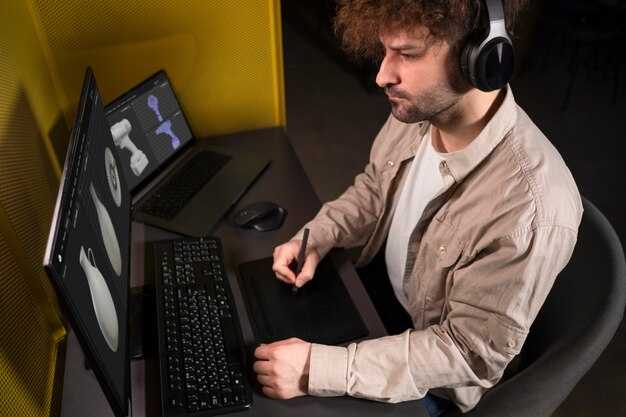
حدد المسار الرئيسي واختبره بمفرده لتحديد المشكلة؛ ركز على الجهاز نفسه والخط الذي يغذيها، ثم كرر ذلك مع مسارات أخرى إذا لزم الأمر.
بالنسبة للتوصيلات المستندة إلى HDMI، اضبط إخراج التلفزيون على HDMI ARC أو eARC، ومكّن CEC، واستخدم الخيار المدمج لتوجيه الصوت عبر الجهاز الخارجي المحدد. قم بتطبيق تعديلات تأخير صغيرة وأعد التحقق باستخدام مقطع وسائط من يوتيوب لقياس المحاذاة؛ إذا استمرت الإزاحة، جرب خطاً مختلفاً أو انتقل إلى جهاز خارجي مخصص يدعم معالجة زمن الاستجابة التلقائي. قد تكون التوافقية مع pluraleyes مهمة على بعض الأنظمة، لذا تحقق من التوافقية إذا كنت تستخدم مخرجات متعددة.
عادةً ما تضيف روابط البلوتوث المزيد من زمن الاستجابة؛ فضل الأجهزة التي تدعم ترميزات زمن الاستجابة المنخفض وحافظ عليها ضمن خط الرؤية. قم بتعطيل الأجهزة اللاسلكية الأخرى لتقليل التداخل. اختبر باستخدام مقطع مدونة مرئية على يوتيوب أو وسائط غير متصلة بالإنترنت لمعرفة ما إذا كانت المشكلة موجودة؛ إذا استمرت، فكر في استخدام محول سلكي أو سماعات بلوتوث مخصصة للحظات الحرجة. لاحظ الإيجابيات والمشاكل المحتملة لهذا الإعداد.
بالنسبة لأجهزة الصوت الخارجية، تأكد من محاذاة الإعدادات على الجهاز المصدر والمصدر؛ قم بتعطيل تخزين مؤقت لتصحيح الغرفة إذا كان ذلك يؤدي إلى تأخيرات، وقم بتطبيق أصغر إزاحة مطابقة تحقق نتائج متسقة. قبل إجراء تغييرات كبيرة، قم بتسجيل شدة المشكلة وتحقق من العمل عبر تنسيقات وسائط مختلفة؛ يساعدك هذا النهج في مراقبة التقدم عبر مدونة مرئية أو مقطع يوتيوب.
احتفظ بمخزون من المحاولات، بعد كل تغيير وقم بتمييز ما إذا كانت النتيجة تعمل أم لا. إذا قدم مسار واحد نتائج رائعة، فالتزم به؛ وإلا، قارن الإيجابيات والسلبيات لكل مسار وقرر ما إذا كنت ستحدث المكونات أو تجرب خطاً مختلفاً من الأجهزة. على أجهزة ويندوز، تحقق من وجود خيارات لتوقيت الإخراج وابحث عن إعدادات تقلل من الانجراف؛ إذا لم يساعد شيء، فارجع إلى الترتيب الأصلي واختبر مرة أخرى دون اتصال بالإنترنت، ثم شارك العرض في مدونة مرئية أو على يوتيوب حتى يتعلم الآخرون من النهج. ألا يمنحك هذا عرضاً أوضح للسلوك العام؟
الاختبار عبر أنواع ومصادر الوسائط لتأكيد الاستقرار
ابدأ بمجموعة ممثلة من المقاطع: تدفقات عبر الإنترنت؛ ملفات تم تنزيلها؛ تسجيلات تم إنشاؤها محلياً. قم بتشغيل كل عنصر عند مرجع تشغيل ثابت؛ قارن الموجات الصوتية بمقطع أساسي للتحقق من تزامن التوقيت.
احذف ذاكرة التخزين المؤقت التي قد تؤثر على النتائج بسبب مشكلة أساسية. يساعد هذا في عزل التغييرات التي تنشأ في المحتوى بدلاً من الإعداد.
التقط الموجات الصوتية من كل مصدر؛ قم بتحليل عوامل مثل الضوضاء الخلفية؛ اكتشف التشبع؛ قم بقياس الجودة عبر المقاطع.
اختبر عبر الأجهزة: الكمبيوتر؛ خيارات الميكروفون؛ الميكروفون المدمج؛ الميكروفون الخارجي؛ قارن النتائج عبر التكوينات. احتفظ بسجل للعوامل التي تؤثر على المحاذاة فقط، هنا.
قم بإجراء تجارب عبر الإنترنت، ودون اتصال بالإنترنت، ومقاطع تم إنشاؤها؛ قارن السلوك تحت عبء شبكة متغير؛ لاحظ الانجراف أو التوقفات. لاحظ الظروف التي يكون لها تأثير محتمل على تباين النتائج.
تتبع النتائج حسب اسم الملف والمصدر والطابع الزمني؛ قم بتخزين النتائج بشكل منفصل؛ أنشئ سجلاً للنتائج الأساسية مقابل نتائج الاختبار.
التصحيح تلقائياً، وتعديل الإعدادات عند الحاجة؛ اختبر بأطوال مقاطع مختلفة؛ تحقق من التغييرات المحتملة في مستوى الخلفية. إذا ظهر عدم الاستقرار، فقم بالقلق بشأن التكوينات الخاطئة الأساسية في الأجهزة أو البرامج.
هنا شيء يستحق التأكيد: هناك خط واضح تبقى فيه الموجات الصوتية متزامنة عبر التدفقات عبر الإنترنت؛ الملفات غير المتصلة بالإنترنت؛ المقاطع التي تم إنشاؤها. إذا استمر هذا، تظل التغييرات مستقرة. لهذا السبب يعد التأكيد عبر المصادر أمراً مهماً.




