
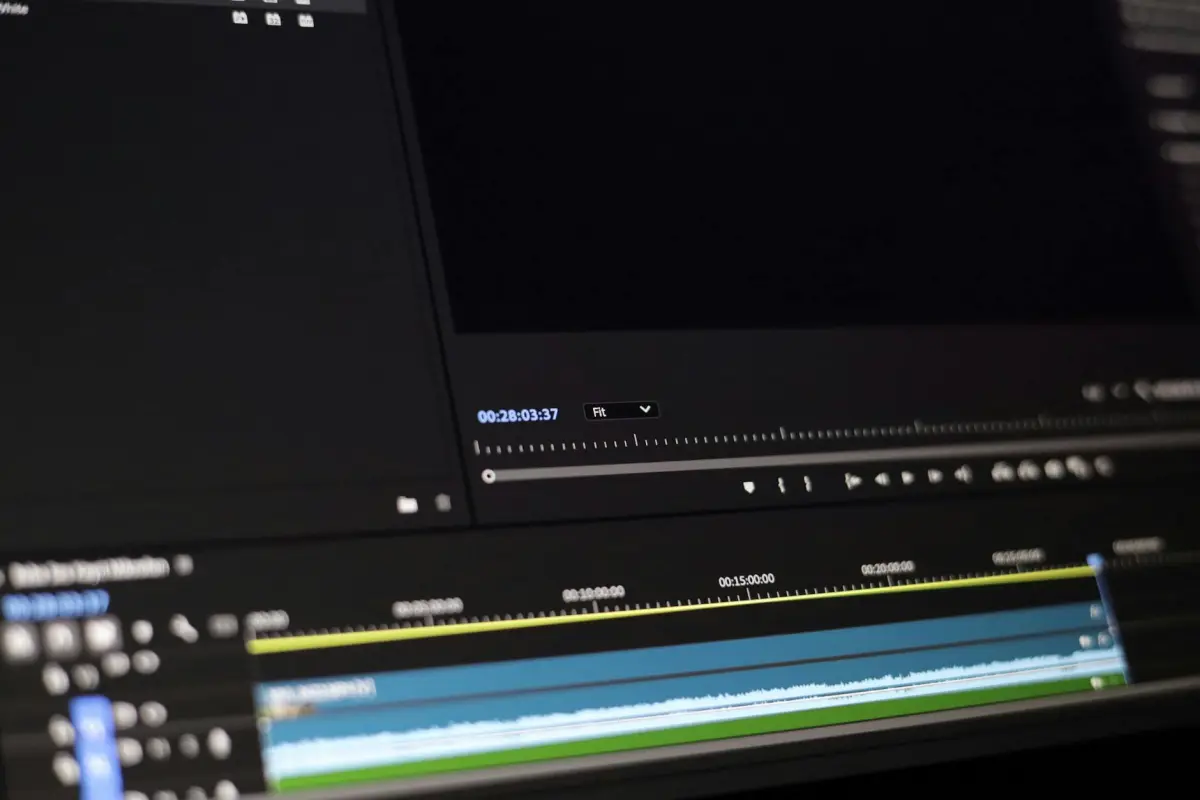
Начните с чистого исходного кадра, где область полностью свободна от элемента. Для новичков этот необходимый шаг создает надежную основу: никогда не приступайте к работе с кадром, показывающим остатки, иначе вы увидите швы. Оставляйте область нетронутой до тех пор, пока не будете готовы завершить доработку.
Увеличьте целевую область, чтобы точно наметить края, используя отзывчивый интерфейс. Выберите сильный инструмент, такой как клонирование или восстановление, для воссоздания текстур, затем сравните с соседними пикселями, чтобы обеспечить точность. В Photoshop целенаправленно применяйте набор инструментов и начинайте с небольших, контролируемых доработок, чтобы переходы выглядели естественно. Эти шаги идеально подходят для создателей, которые начинали с простых проектов и теперь стремятся к более чистому результату.
После первого прохода проверяйте кадр за кадром, чтобы избежать артефактов. Цель состоит в том, чтобы устранить несоответствия, не создавая новых; отрегулируйте смешивание, чтобы оно соответствовало освещению и теням. Когда что-то выглядит размытым, используйте более тонкую кисть и увеличьте растушевку, где это необходимо. Если что-то выглядит неправильно, никогда не полагайтесь на один проход. Используйте интерфейс для предварительного просмотра результатов и убедитесь, что изменения никогда не привлекают внимания.
Наконец, экспортируйте последовательность с помощью надежного, полностью документированного метода. Для передовых рабочих процессов сохраняйте предустановки, автоматизирующие обрезку, маскирование и заполнение; это поможет создателям быстро восстановиться, если вам потребуется повторно проверить. Если вы начали со сбора нескольких исходных кадров, немедленно примените лучший и проверьте согласованность по всей временной шкале. Интерфейс должен поддерживать быстрое переключение между исходной и обработанной версиями, чтобы убедиться, что вы добились устранения, не жертвуя качеством.
Практический рабочий процесс удаления объекта с использованием эталонного изображения
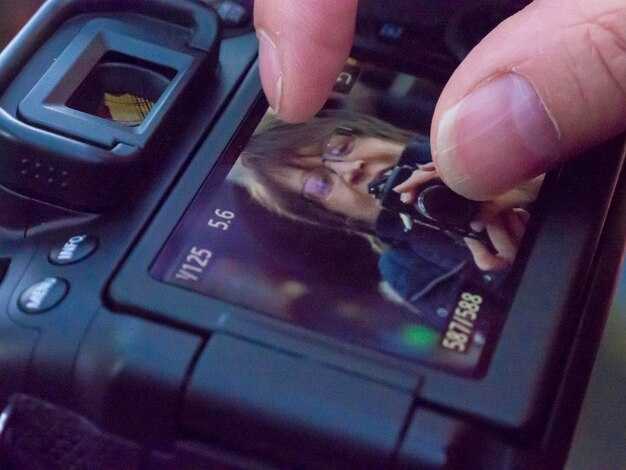
Начните с загрузки направляющего кадра, показывающего область позади элемента. Этот источник помогает алгоритму сопоставлять текстуру и освещение во всей последовательности, обеспечивая плавное смешивание и сохраняя целостность сцены.
Нарисуйте раскадровку, которая отслеживает ожидаемое положение области в трех запланированных кадрах, уточняя, где должно происходить заполнение и какую текстуру клонировать.
Создайте черновой вариант маски, чтобы отделить ненужную область, затем уточните края, чтобы сохранить детали. Используйте растушевку для плавных переходов, чтобы предотвратить резкие границы.
Сопоставьте цвет и освещение, отбирая образцы соседних пикселей и применяя локальные корректировки; в быстром рабочем процессе используются заполнение на основе патчей и восстановление, где существуют образцы для точного воспроизведения текстуры.
Повторяйте, проверяя три образца кадров и отмечая любые признаки несоответствия; отрегулируйте оттенок, насыщенность и яркость до тех пор, пока результат не останется отполированным.
Варианты экспорта включают webp, который обеспечивает небольшой размер файла при сохранении деталей; сохраните высококачественную версию для утверждения и быстрых проверок.
Распространенные ошибки включают оставление видимых швов, чрезмерное смешивание или внесение отвлекающих факторов; часто проверяйте вывод в разных масштабах, чтобы обеспечить согласованность.
Заключительные советы: используйте такие шаги, чтобы сохранить единство кадра, избегая утечек водяных знаков и сохраняя три ключевых детали, соответствующие освещению, текстуре и перспективе.
Выберите или захватите чистый эталонный кадр, содержащий область для редактирования
Выберите целевой кадр, где область для модификации находится на чистом фоне, без движения или перекрытия. Используйте штатив, заблокируйте ручную экспозицию и баланс белого и снимайте с максимально возможным разрешением (предпочтительно RAW или 12-битный JPG). Этот подход сокращает последующие доработки в постпродакшене и помогает сразу получить потрясающие результаты.
Сохраняйте угол камеры и расстояние постоянными с окружающими сценами, чтобы сохранить перспективу. Если вам нужно снять новые фотографии, идентичное кадрирование значительно упростит восстановление деталей и минимизирует несоответствия между кадрами, которые могут разочаровать как создателей, так и зрителей.
Проверьте область на наличие логотипов или водяных знаков. Если они являются частью зоны, которую вы планируете изменить, выберите кадр, где эти отметки остаются плоскими и однородными, чтобы их можно было изолировать или удалить чисто. Если логотип отвлекает и не является необходимым, выберите изображение с более простым фоном, чтобы упростить задачу.
Предпочитайте сцены, которые четко показывают область редактирования и без отвлекающих факторов. Чистые фоны уменьшают вероятность смещения на более поздних этапах, а также ускоряют рабочий процесс, когда вы делитесь контентом с сотрудниками или задаете вопросы для обратной связи.
Когда вы не можете повторно снять, выберите кадры, которые максимально точно отражают освещение и цвет во всей последовательности. Нормализуйте среднюю яркость и цветовую температуру на начальном этапе, чтобы ограничить сдвиги цвета, тем самым снижая риск заметных швов после доработок.
Список для проверки: убедитесь, что кадр имеет достаточное разрешение, минимальное размытие в движении, равномерное освещение и стабильную фокусировку. Если вы постоянно работаете над одним и тем же проектом, сделайте несколько снимков на сцену и выберите тот, у которого наиболее согласованный фон; этот подход ускоряет распространение результатов другим командам и сохраняет целостность контента между сценами.
Согласуйте кадр с освещением, цветом и углом наклона камеры сцены
Согласование кадра с освещением, цветом и углом наклона камеры сцены придает зрителям чистый, целостный вид во всей последовательности. Эта настройка дает вам точность и позволяет вносить коррективы, не оставляя несоответствий в кадре, сохраняя творческий замысел.
Определите доминирующий цветовой оттенок, усреднив цветовые каналы на нейтральных участках; отрегулируйте кадр так, чтобы он соответствовал премиальному видеоряду использовалось в студиях, обеспечивая согласованное настроение между правками.
Установите направление освещения, чтобы оно совпадало с основным и заполняющим светом, затем проверяйте кадр за кадром, чтобы блики и тени оставались в безопасном диапазоне; никогда не допускайте клиппинга.
Расположите камеру так, чтобы линии горизонта и геометрия объекта совпадали; если вы находитесь в любительской установке, небольшие угловые корректировки ускоряют процесс и сохраняют высокое качество результата.
Этапы выравнивания включают: оценка световых сигналов, балансировка цвета, корректировка угла, проверка с помощью нейтральной серой карты и повторная проверка кадр за кадром.
Отредактированные кадры остаются чистыми в премиальном рабочем процессе менеджера студии; это сохраняет целостность проекта и обеспечивает профессиональный результат для зрителей.
Чтобы восстановить единообразный вид по всему клипу, размытие можно осторожно использовать на фоновых элементах, это помогает оставить основной объект резким, сохраняя при этом скорость и точность.
| Параметр | Действие | Примечания |
|---|---|---|
| Направление освещения | Сопоставьте основной свет со сценой, отрегулируйте в пределах ±5° | Проверка кадр за кадром обеспечивает точность |
| Цветовая температура | Усредните цвет на нейтральных участках, установите баланс белого на 5500–6500K | Сохраняйте согласованность между снимками |
| Угол камеры | Совместите линии горизонта и объекта, наклоните/поверните в небольшом диапазоне | Используйте сетку в качестве руководства; обеспечьте точное выравнивание |
| Экспозиция | Стабилизируйте яркость, избегайте клиппинга в бликах | Проверяйте с помощью гистограммы |
Маскируйте объект и выполните синтез текстуры для заполнения пробела
Начните с рисования плотной маски вокруг целевой области, чтобы граница была закрыта с высокой точностью. Используйте растушевку, чтобы смягчить переходы и помочь синтезу текстуры выглядеть естественно. Полагайтесь на проверку краев, чтобы обнаружить любые утечки и внести соответствующие коррективы.
Выберите подход к синтезу текстуры, который использует соседний контент. Образцы на основе образцов или многомасштабный синтез обеспечивают хорошее покрытие и помогают сохранить цвет и структуру. Сопоставьте образцы с локальным градиентом яркости и цвета, чтобы соответствовать окружающей области.
Управление цветом: отрегулируйте цветовой баланс, чтобы заполнение соответствовало освещению сцены. Используйте соседние кадры в качестве цветового ориентира, чтобы сохранить эпоху или настроение; даже крошечные сдвиги могут восприниматься как искусственные. Внедрите блокировку цвета, чтобы сохранить общий вид стабильным на протяжении всего редактирования.
Непрерывность текстуры: для заполнения больших пробелов синтезируйте в несколько проходов, сначала грубую структуру, затем уточняйте текстуры. Используйте премиальный набор плиток текстур для поддержания целостности и избежания явного разбиения на плитки. Сохраняйте края гладкими, смешивая их с градиентными масками.
Управление отвлекающими факторами: избегайте повторяющихся узоров, которые привлекают внимание. Поворачивайте образцы, переворачивайте, где это возможно, и смешивайте источники, чтобы уменьшить узнаваемость. Этот подход минимизирует отвлекающие факторы и дает наилучший естественный результат.
Контроль качества: выполните быструю проверку, чтобы обнаружить несоответствующие текстуры и цветовые полосы. Если они обнаружены, отрегулируйте образцы локально или возьмите образцы из более подходящей области. Это позволяет редакторам добиться надежного, чистого заполнения, которое не оставляет следов исходного удаления.
Вывод и рабочий процесс: экспорт в webp для баланса качества и размера, особенно для онлайн-студий и портфолио. Эта функция поддерживается многими инструментами и помогает сохранить четкость при разных масштабах просмотра. Затем проверьте на разных устройствах, чтобы подтвердить единообразие; этот обучающий шаг снижает вероятность явных несоответствий.
Лучшие практики для соблюдения сроков: сохраняйте неразрушающее редактирование, упорядочивание исходных кадров и оставляйте четкий след для будущих корректировок. Если в кадре есть логотип или элемент брендинга, убедитесь, что его целостность не нарушена, а заливка соответствует желаемому цвету и текстуре.
Стабилизируйте и настраивайте соседние кадры для поддержания непрерывности и движения
Начните с поэтапной стабилизации всей последовательности с помощью ИИ для устранения смещений и поддержания плавного пути движения в каждой сцене.
Для кадров, примыкающих к измененному участку, уплотните выравнивание, выбрав 4–6 опорных точек и применив микрокорректировки на границах для сохранения параллакса и ритма раскадровки. Это обеспечивает согласованность движения при начале следующего кадра и поддерживает стабильный темп при смене планов.
Заполните получившийся пробел осторожным подбором текстур из соседних изображений; используйте основанный на выделении подход для заимствования текстур, теней и зернистости, затем смешайте с тонким трансформированием, чтобы избежать швов и обеспечить непрерывность без внесения артефактов.
В премиальном рабочем процессе, разработанном для кинематографистов, используйте конвейер на базе ИИ, который обеспечивает более согласованное движение между сценами, позволяя делиться результатами на социальных платформах. Этот подход сохраняет детали и обеспечивает безопасность процесса от смещений с течением времени.
Сохраняйте сильную ссылку на раскадровку и выделение кадров для руководства любыми корректировками, гарантируя, что интервалы между кадрами и тайминг останутся неизменными, пока вы преобразуете контент по мере необходимости, не допуская чрезмерной коррекции. Результат сохраняет детали повествования и делает текстурные сигналы читаемыми на каждом изображении, помогая аудитории сосредоточиться на истории, а не на технических исправлениях.
Финальная проверка: убедитесь, что непрерывность сохраняется при предварительном просмотре последовательности, обеспечивая плавную смену кадров от начала до конца. Эта дисциплина поддерживает полный, плавный опыт для кинематографистов, которые делятся всем онлайн, сохраняя устойчивость рабочего процесса на всех изображениях.
Почему стоит выбрать Clipfly AI Video Object Remover: основные функции, цены и реальные результаты
Начните с удобной, основанной на ИИ очистки, на которую полагаются студии и редакторы для доставки чистых клипов зрителям, без трудоемких рабочих процессов и загроможденных кадров.
Выделяющиеся ключевые функции
- Передовой ИИ, который обнаруживает и удаляет нежелательные элементы в движении, сохраняя естественный вид сцены.
- Точное удаление водяных знаков и логотипов с сохранением мелких деталей и непрерывности движения.
- Интуитивно понятный интерфейс, разработанный для редакторов, предлагающий упрощенный рабочий процесс, который часто предпочтительнее громоздких альтернатив.
- Широко поддерживаемые форматы и входы, включая изображения и несколько типов клипов, гарантирующие работу с существующими активами.
- Неразрушающий процесс, который сохраняет исходный материал, позволяя безопасно итерировать без ущерба для исходного материала.
- Индивидуальные настройки, позволяющие добиться желаемого вида с минимальными усилиями, соответствуя целевой эстетике.
- Автоматическая генерация тегов и метаданных, упрощающая организацию для команд и студий с большими библиотеками.
- Экономичная автоматизация, обеспечивающая более быструю обработку при сохранении высокого качества, в отличие от ручной очистки.
- Плавная интеграция, подходящая как для индивидуальных авторов, так и для студий, обеспечивающая чистый вывод, подходящий для вещания или стриминга.
- Персонализированные пресеты, адаптирующиеся к различным жанрам, сокращающие повторяющиеся настройки и ускоряющие доставку для частых проектов.
Тарифные опции
- Стартовый план: идеально подходит для частных лиц и небольших студий, предлагая основные возможности с удобным ежемесячным вариантом и масштабируемыми местами по мере необходимости.
- Студийный план: разработан для растущих команд, больше мест и более высокая пропускная способность, с дополнительными инструментами для упрощения совместных рабочих процессов.
- Корпоративный план: для крупных операций, с приоритетной поддержкой, доступом к API и индивидуальными рабочими процессами, соответствующими сложным конвейерам.
Реальные результаты
- Бутик-студия с сжатыми сроками сократила время постобработки на 50–65%, позволив редакторам сосредоточиться на творческих решениях и быстрее предоставлять черновики клиентам.
- Независимый автор сократил время, проведенное за работой с загроможденными кадрами, на 40–60%, высвободив ресурсы для съемок, написания сценариев и тестирования аудитории, часто улучшая показатели вовлеченности.
- Среднее агентство автоматизировало рутинные очистки в рамках кампаний, достигнув согласованной целостности движения и сократив количество корректировок, что помогает соблюдать сроки без ущерба для качества.
На практике платформа предоставляет студиям надежный метод соответствия ожиданиям аудитории, сохраняя предполагаемый вид каждого кадра при плавном воспроизведении движения и без внесения новых артефактов. Он совместим с широким спектром проектов, от личных клипов до крупномасштабных производств, и подходит для редакторов, ищущих более быстрый и персонализированный рабочий процесс — часто заменяя трудоемкую ручную очистку упрощенным автоматизированным процессом, который обеспечивает измеримые результаты в плане эффективности.




