
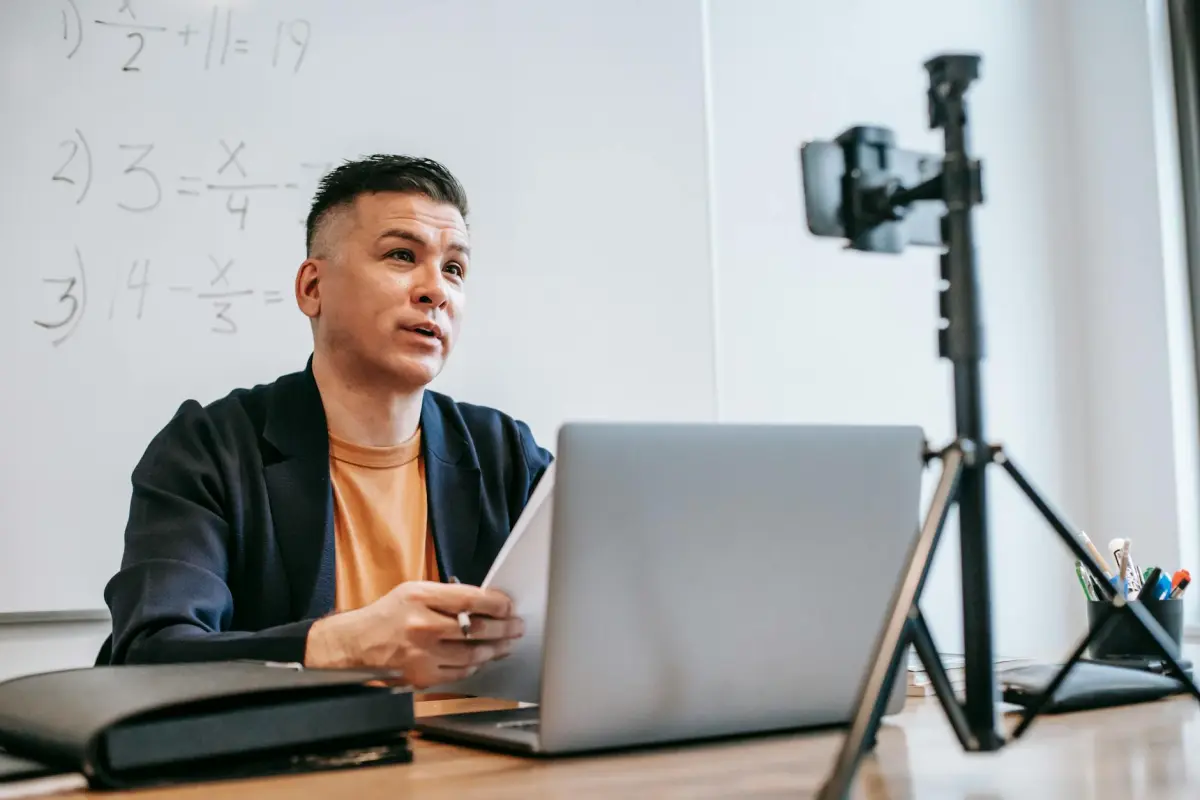
Лаконичный план и 3-сценарный план с самого начала снижают сложность. Сохраняйте узкую направленность: один пункт на сегмент и один вывод на экран. С студийной установкой и комплектом освещения вы сэкономите время и избежите переделок; спланируйте четкое закадровое озвучивание, качественные визуальные эффекты и функции, поддерживающие учащихся.
Сотрудничество ускоряет производство; четкий сценарий сокращает ненужные дубли и согласовывает озвучивание, субтитры и визуальные эффекты для информативного повествования. Привлеките нескольких экспертов по предмету с самого начала; многие корректировки исчезают, когда вы делитесь основным планом и относитесь к сценарию как к части рабочего процесса. Разработайте блоки, которые требуют всего двух подсказок для объяснения. Установите правила, требующие минимальных правок для поддержания эффективности процесса. Такой подход сделал рабочий процесс более плавным для всех ролей.
Структурируйте пятиминутный интервал по трехчастному скелету: завязка, основное содержание и заключение. Ограничьте количество текста на экране 20–40 словами на экран; позвольте визуальным эффектам передать суть. Используйте однокамерную установку для единообразия; это поможет сложность держать под контролем. Отдавайте предпочтение одному надежному инструменту для редактирования и студийному пакету графики для поддержания чистого, быстрого рабочего процесса. Использование естественного освещения и стабильных кадров обеспечивает отличный вид без громоздкого оборудования. Длительность повествования должна составлять около 130–150 слов в минуту, чтобы уложиться в пятиминутную продолжительность. Находите краткие ответы быстро в субтитрах.
Измеряйте успех с помощью четких показателей: коэффициент завершения, средняя продолжительность просмотра и действия, связанные с вовлечением (репосты, комментарии, повторы). Используйте полученные результаты для улучшения сценариев, сцен и визуальных эффектов для будущих клипов — достигайте постоянного улучшения при скромных затратах. Поддерживайте повторно используемый студийный рабочий процесс; храните блоки в наборе инструментов и делитесь ими по разным курсам, чтобы сэкономить время и обеспечить единообразие.
Как создать короткие образовательные видео за 5 минут с помощью инструментов для записи экрана
Начните с одной сессии записи экрана с помощью Loom; подготовьте четкий план перед началом, сосредоточившись на основном выводе, который ваша аудитория сможет применить сразу. Этот план поможет вам оставаться лаконичным, даже когда тема кажется сложной, избегая длинного вступления, которое замедляет темп.
Сохраняйте простую структуру: завязка, основное сообщение, краткое резюме. Расскажите своей аудитории, что они узнают, а затем покажите это. Используйте базовый редактор и практические методы для сборки нарезок; это снижает трение и сокращает продолжительность. Этот рабочий процесс помогает сосредоточить вашу работу и удержать внимание аудитории.
Используйте мультимедиа и анимацию в визуальных эффектах умеренно; выделите один или два ключевых термина и используйте B-roll для иллюстрации действий или контекста. Постоянно показывайте основное действие четко и следуйте практическому правилу: ограничьте одновременные визуальные эффекты несколькими элементами, что улучшает понимание и запоминание. Это помогает сообщению дойти быстрее и с меньшим количеством отвлекающих факторов.
Качество голоса имеет значение. Используйте четкий тон, ровный темп и минимум слов-паразитов. Своевременное озвучивание может превратить абстрактные идеи в конкретные шаги, помогая вам обучать концепциям и поддерживать высокий интерес. Такой подход может облегчить понимание концепции и гарантировать, что слушатели поймут ключевые моменты, которые вы хотите им донести.
Используйте библиотеки и шаблоны для экономии времени: выбирайте шрифты, значки и короткие клипы, соответствующие вашей теме. Существует множество активов в библиотеках, поэтому вы можете ускорить производство, не перегружая сообщение. Избегайте ненужных дополнений, которые замедляют демонстрацию основного момента.
Перед публикацией выполните быструю проверку: обрежьте пустые места, проверьте субтитры, убедитесь в правильности продолжительности и доступности. Если вы не можете охватить все за один проход, разделите работу на небольшую серию клипов и опубликуйте их как связный набор. Выделите важные моменты для закрепления в каждом клипе.
5-минутная структура для образовательных видео с инструментами записи экрана
Начните с пятиминутного кадра: выберите источник и его актуальность, напишите краткий сценарий примерно из 150–180 слов и запишите запись экрана, которая следует сценарию от начала до конца. Проверим ход: четкое вступление, одна конкретная демонстрация и ясный вывод. Выполните профессиональную подачу, которая легко поддерживает обучение и позволяет сосредоточиться на материале.
Используйте сочетание визуальных эффектов, соответствующих материалу: типы визуальных эффектов включают слайды, окна браузера, интерфейс приложений и быстрые диаграммы. Отображайте материалы только тогда, когда они поддерживают основную идею; переключайтесь между интерфейсом и текстом, чтобы избежать перегрузки. Используйте понятные примеры для повышения релевантности и аннотируйте шаги, чтобы зрители могли следить за ходом событий без долгих задержек.
Убедитесь, что каждая секунда на экране соответствует сценарию. Делайте субтитры краткими, избегайте длинных абзацев и редактируйте записи, чтобы свести к минимуму слова-паразиты. Четко указывайте источник внизу и ссылайтесь на материал на последнем слайде, чтобы повысить доверие. Выбираемые вами слова должны быть практически действенными и легко распространяемыми; преимущества краткого повествования перевешивают многословную подачу.
Инструменты и подход: выберите программное обеспечение для записи экрана для четкой записи и упрощенного рабочего процесса. Если вам нужен рассказчик, который не появляется на экране, Synthesia может обеспечить естественное звучание голоса, в то время как вы сохраняете контроль над темпом. Это эффективно поддерживает подачу и помогает вам более эффективно достигать учебных результатов.
Поиск материалов и уточнение вашего кадра: находите материалы с надежными источниками, сопоставляйте их с коротким повествованием и создавайте сценарий, использующий простые слова и конкретные шаги. Практически все учащиеся реагируют на понятные примеры; проверяйте эти моменты в разных итерациях, чтобы максимизировать релевантность. Если вам нужен более короткий результат, используйте ярлыки и минимизируйте последовательности кликов, чтобы уложиться в пятиминутный лимит, получив лаконичную запись, которую легко усвоить.
Определите основной вывод и 60-секундную структуру

Выберите один основной вывод и выстраивайте каждую строку вокруг него; этот якорь служит ориентиром для учащихся и делает ваш контент простым, легким и запоминающимся во всех видео.
60-секундная структура: 0–10 с — завязка, 10–40 с — объяснение сути с простым примером, идеальным для учащихся, 40–60 с — заключение, четко излагающее вывод и указывающее учащимся, что делать дальше. Используйте такие форматы, как вертикальный или квадратный, чтобы соответствовать платформам. Кадр передает ваше сообщение и делает ключевой вывод ясным.
Начните с чего-то осязаемого, что демонстрирует суть; используйте простой визуальный стиль и форматы, соответствующие платформе; говорите напрямую с учащимися простым, конкретным голосом; структура переводит зрителя от любопытства к действию.
Визуальный темп и композиция: сохраняйте одну форму на экране, ограничивайте текст на экране и используйте подсказки для направления мышления; эта форма закрепляет повествование и поддерживает отображение на разных устройствах.
Контент и взаимодействие: добавьте интерактивную подсказку, затем кратко ответьте; это создает вовлеченность и запоминающийся вывод, давая учащимся четкий следующий шаг и более быстрое понимание.
Шаблоны, созданные для этого рабочего процесса, образуют повторяемую систему; используйте эти шаблоны, чтобы тратить меньше времени на подготовку и больше времени на повышение эффективности; мастер-классы могут применять эту структуру к различным форматам, гарантируя, что все останется четким и запоминающимся, а этот подход дает предсказуемые результаты.
Выберите легкий рекордер экрана и быструю настройку
Используйте легкое настольное приложение Loom для быстрого старта: установите, войдите в систему и выберите запись экрана в разрешении 1080p/30fps с экспортом в MP4. На бесплатном тарифе продолжительность клипа ограничена 300 секундами, что сокращает циклы производства и делает конечные файлы управляемыми. Это дает четкие снимки с минимальной задержкой, идеально подходит для плотного, однопроходного урока, который остается сосредоточенным на ваших основных визуальных эффектах.
Для автономной работы с мощными наложениями ScreenPal (ранее Screencast-O-Matic) предлагает режимы «Только экран» и «Экран + веб-камера» с простыми выделениями курсора и наложениями заголовков. После установки установите вывод в MP4, 1080p, 30fps и включите звук. Быстрая настройка занимает менее двух шагов, что делает ее практичной для быстрой серии клипов по теме.
Вот краткий протокол: выберите один базовый рекордер и повторно используйте его во всей серии; используйте наложения целенаправленно — они должны подчеркивать шаги, а не отвлекать. Сделайте 10-секундный тестовый клип, чтобы проверить запись в реальном времени и звук, а затем внесите коррективы перед публикацией. Вы можете применить правило: стремитесь к единообразию, используйте один и тот же шаблон на всей платформе, чтобы сэкономить время, и убедитесь, что качество соответствует ожиданиям аудитории. Если вы планируете на долгосрочную перспективу, рассмотрите возможность использования таких интро, как Synthesia, для поддержания брендинга при сохранении четкости визуальных эффектов. Такой подход учитывает ваши ограничения по мощности и подходит для платформ, поддерживающих несколько языков, позволяя вам отказаться от сложного редактирования. Утверждение здесь простое: скорость, ясность и повторяемые процессы приводят к результатам.
| Рекордер | Почему он хорош | Наилучшее применение | Платформы | Лимит |
|---|---|---|---|---|
| Loom | Сверхбыстрая настройка; 1080p/30fps; экспорт в MP4 | Короткие объяснения; быстрые записи | Windows, Mac, Web | Бесплатный тариф: 300 секунд на клип |
| ScreenPal | Автономный режим; оверлеи; субтитры | Пошаговые руководства | Windows, Mac | Платные тарифы меняют лимиты |
Запись с чистым звуком и простым экранным интерфейсом
Используйте кардиоидный USB-микрофон, расположите его на расстоянии 6-12 дюймов от рта и используйте поп-фильтр. Установите частоту дискретизации 44,1 кГц, разрядность 16 бит, в тихой комнате с мягкими поверхностями для поглощения эха. Уберите клавиатуру из кадра или выключите звук, когда не говорите; эти шаги уменьшат шум. Результат — чистый звуковой трек для эффективного обмена учебными материалами; это практичная основа для объяснения основных моментов.
Экранный интерфейс: выберите один из трех вариантов отображения: 1) чистый заголовок с одним маркированным списком; 2) разделенный экран, где вы находитесь с одной стороны, а ключевая диаграмма — с другой; 3) полноэкранное видео с субтитрами. Используйте один шрифт, высокую контрастность и большой текст заголовка для достижения целей. Расположите камеру на уровне глаз, чтобы уменьшить наклон головы, и сохраняйте движения тонкими; короткий анимационный клип может выделить термин, не отвлекая. Визуальные элементы должны оставаться последовательными во всех сценах и соответствовать потоку шагов.
Во время записи отслеживайте свой голос и визуальные материалы в соответствии с целями обучения. Используйте стиль "живая камера" или "живой экран" для иллюстрации шагов; проверьте уровни с помощью измерителя, пикирующего около -6 дБ, а затем оставьте запас для пиков. Если громкость падает, сделайте паузу и повторите; рассмотрите возможность использования второго микрофона, если комната шумная. Для лучшей непрерывности сохраните три дубля и выберите лучший из всех. Финальный трек должен быть чистым; объедините его с визуальными элементами и добавьте короткую подпись к каждому из трех пунктов. Перед публикацией просмотрите поток и тайминг, убедившись, что визуальные элементы поддерживают объяснение трех ключевых идей: целей, методов и результатов. Это усиливает силу сообщения и помогает в обучении и запоминании. Еще один совет: предварительно просмотрите на небольшом экране, чтобы убедиться в читаемости на разных устройствах.
Добавьте визуальные подсказки: аннотации, выделения и субтитры
Рекомендация: Создайте карту подсказок перед редактированием; размещайте 2-4 подсказки на сцену, каждая из которых ограничена несколькими словами; синхронизируйте с устным контентом, чтобы учащиеся могли читать и смотреть без пауз. Для реализации рекомендуется базовый уровень двух подсказок на сегмент, поскольку такой подход поддерживает постоянный темп и облегчает быстрый обзор.
Аннотации должны появляться рядом с краями визуальных элементов, а не поверх основных деталей. Также учитывая жизненный контекст, используйте простые метки и стиль "визуал прежде всего", который помогает учащимся, когда воспроизводится звуковая подсказка. Эти подсказки требуют тщательной калибровки, чтобы избежать беспорядка. Текст должен быть коротким и структурированным, чтобы пользователи могли просматривать контент во время прослушивания.
Выделения должны использовать контур с высоким контрастом вокруг ключевых визуальных элементов; выберите цвет, сигнализирующий о важности (желтый на темном, бирюзовый на светлом). Избегайте мигания; минимизируйте движения, чтобы не отвлекать. Для учащихся с высокими показателями раскрашивание повторяющихся концепций помогает запоминанию; добавьте крошечную метку в стиле новостей на область, чтобы зрители могли заметить ее с первого взгляда.
Субтитры должны быть точными и синхронизированными с речью; включайте метки говорящих, когда появляются несколько голосов; держите каждую строку короткой (1-2 строки на экран), чтобы контент оставался читаемым. Используйте простой шрифт с фоновым блоком для улучшения читаемости; если появляется аббревиатура или необычное произношение, предоставьте быструю подсказку по произношению. Для доступности предоставьте отдельный файл с транскрипцией, который пользователи могут скачать или использовать для поиска.
Тестирование и доработка: проведите быстрый тест с учащимися с разными потребностями; соберите отзывы о читаемости, темпе и полезности подсказок, не отвлекаясь от контента. Сосредоточьтесь на количестве подсказок на сцену; если пользователи сообщают о путанице, сократите до 2 подсказок на сегмент и измените формулировки. Рабочий процесс редактирования должен оставаться структурированным и простым в управлении; это ускоряет процесс и облегчает ссылки. Результаты быстрых тестов показывают, что этот подход улучшает запоминание и передачу навыков. Этот подход основан на практических испытаниях.
Обрезка, добавление субтитров и экспорт: быстрое постпроизводство
Сократите до 60-90 секунд, удалите лишнее и поместите основную идею в первые 15-20 секунд, чтобы удержать внимание и ускорить понимание. Этот подход делает ваш жизненный урок четким и непосредственно полезным для студентов, уменьшая шум и поддерживая постоянный темп.
- Стратегия обрезки: установите единую сквозную линию, которая соответствует чтению на экране и визуальным акцентам. Вырезайте все отступления, устраняйте загроможденные кадры и убедитесь, что каждый монтажный переход продвигает историю вперед. Результат должен ощущаться как чистая студийная запись, а не как перегруженный экранный тест, что помогает аудитории оставаться вовлеченной в разных временных рамках и на разных устройствах.
- Субтитры и перевод: создавайте точные субтитры, синхронизированные с речью, с ограничением в две строки на экране. Предоставляйте переводы для охвата разных языковых групп; субтитры поддерживают скорость чтения и доступность. Они особенно ценны, когда студенты смотрят без звука или в общих помещениях, делая контент пригодным для использования в шумных местах и разнообразных классах.
- Версии для экспорта: создайте версию A для просмотра в классе, версию B для публикации в Интернете и версию C для автономного доступа. Каждый файл сохраняет призыв к действию и последовательную визуальную идентификацию, экономя время, когда вам нужно публиковать новости или адаптировать материалы для разных платформ. Такой версионированный подход позволяет избежать дублирования и поддерживает чистый рабочий процесс.
- Аудио и видео: примените шумоподавление, нормализуйте уровни и проверьте точность синхронизации губ. Загроможденный звуковой трек портит обучение; стремитесь к чистому, стабильному звуку с минимальным шипением и постоянным объемом. Используйте сдержанную цветовую градацию и читаемую типографику, чтобы снизить когнитивную нагрузку и сосредоточить внимание на основном уроке.
- Макет и темп: используйте короткие экранные тексты по 3-4 секунды на строку и краткие маркированные заметки для усиления идей, не перегружая повествование. Этот ритм подходит как для быстрого потребления, так и для длительного чтения, поддерживая распространенные стили обучения и делая контент доступным.
- Интерактивные заметки и студийные подсказки: встраивайте ненавязчивые интерактивные элементы (опросы, краткие вопросы для размышлений или выделения), чтобы повысить вовлеченность, не нарушая поток. В стиле интервью или студийной обстановке поддерживайте стабильный ритм, чтобы студенты не чувствовали спешки и могли усваивать ключевые идеи за один раз.
- Петля обратной связи: проведите быстрый обзор с небольшой группой студентов, чтобы собрать практические отзывы о читаемости, точности перевода и темпе. Используйте полученные данные для доработки версии перед финальной публикацией, гарантируя, что материал остается актуальным для повседневной жизни и текущих новостных тем.
Чек-лист: проверьте, что вступительный вывод очевиден, субтитры точны, переводы отображаются корректно, а финальная версия корректно воспроизводится на разных устройствах. Сосредоточьтесь на уровне ясности, которого вы хотите достичь у своей аудитории, и убедитесь, что призыв к действию четкий и выполнимый. Помните, ясность превосходит многословие; делайте контент лаконичным, с историями, которые переводятся в реальные приложения, и поддерживайте регулярное обновление. Если вы хотите охватить широкую аудиторию, всегда тестируйте клипы в различных условиях чтения и на разных языках, и не забывайте приглашать отзывы для улучшения следующего выпуска, вы увидите более быстрые улучшения и более широкий охват в вашем сообществе.




