
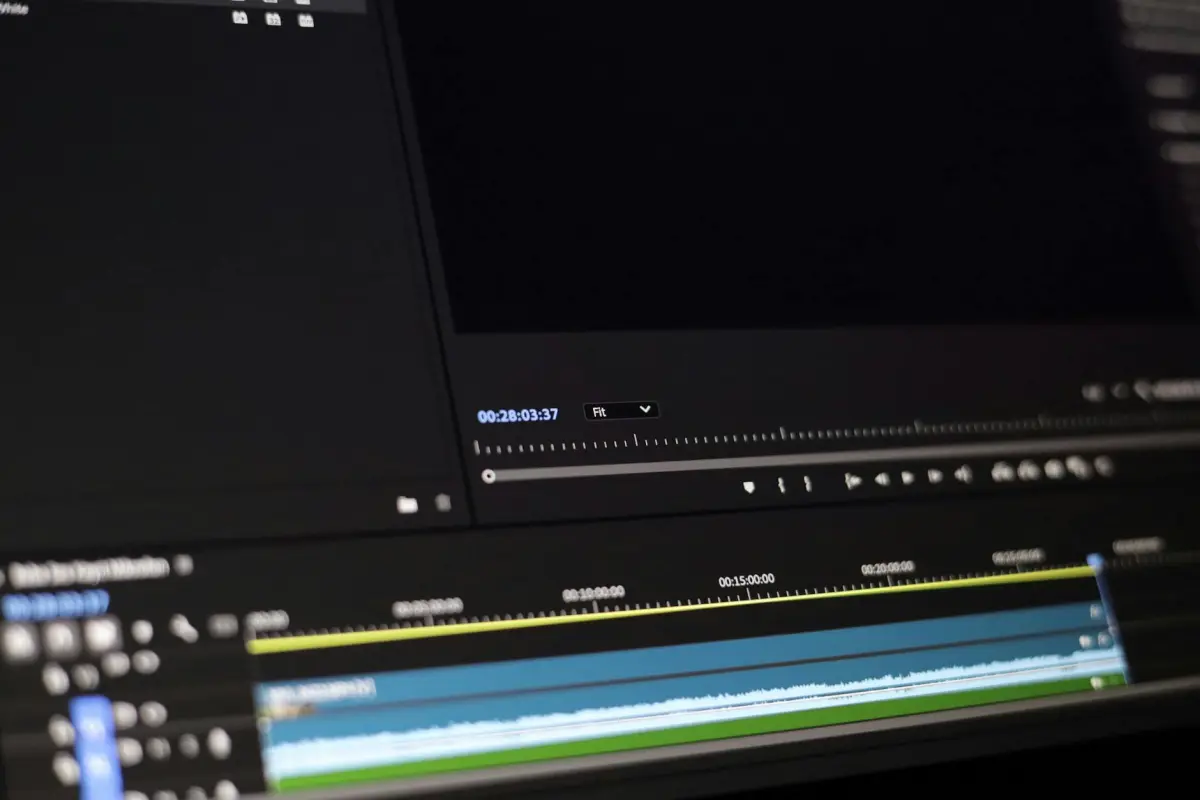

まず、ディテールが豊富な参照フレームを選択し、ターゲットクリップの露出、ホワイトバランス、色合いを調整します。これにより、ディテールが一貫して現れ、色やノイズの不一致による結果の低下を防ぐことができます。クリップのバッチで作業する場合は、これらの設定を均一に適用して、ショット間の連動性を保ちます。
次に、シャープネスと復元アルゴリズムを組み合わせて、粒状感を増幅することなく、エッジを自然に持ち上げます。プロフェッショナルなワークフローでは、デコンボリューション、エッジ認識シャープネス、ノイズ抑制を使用して、明白なアーティファクトを回避することがよくあります。予測可能な結果を得たい場合は、メトリクスを追跡して進捗を確認します。
高速化するには、バッチモードで実行し、アイテム間で解像度、フレームレート、カラースペースを同じに保ちます。この高速なアプローチは、ドリフトを最小限に抑えます。topaz ツールを使用する場合は、粒状感を減らしながらエッジの忠実度を維持するアルゴリズムを選択します。これにより、目に見えてクリアなディテールが得られます。
ただし、参照フレームが異なるカメラで、または異なるISO設定でキャプチャされた場合に発生する問題に注意してください。カメラ間の違いは、忠実度を著しく低下させる可能性があります。しかし、モーション補正とよりタイトな時間的アライメントで補うことができます。必要に応じて、モーションアライメントを調整してドリフトを最小限に抑え、ファントムエッジを確認します。
簡潔な展望は次のとおりです。主要なテクスチャとエッジを比較し、メトリクスを記録する検証パスを導入します。ユーザーはパラメータを微調整でき、ワークフローにアクセスしやすくなります。プロフェッショナルオペレーターとホビイストの両方にとって、強力な結論に至るアプローチを可能にします。
ビデオおよび参照画像のためのアクション可能なAIぼかし軽減ワークフロー
自動操縦モードから始めます。ターゲット解像度にリサイズし、学習ベースのノイズ除去を適用し、次にディテールを維持するパスを適用して、ノイズを減らしながらエッジをシャープに保ちます。このアプローチにより、アーティファクトなしで高速にクリアなフレームが得られ、イラストや異なる照明下で変化する被写体に対してプロフェッショナルグレードの結果が得られます。このワークフローを使用して、品質ベンチマークを向上させながら、プロセスを再現可能、共有可能、およびFacebookのようなプラットフォームで監査しやすい状態に保ちます。
- 前処理とターゲット定義
- 必要な入力:色深度8〜10ビット、一貫したフレームレート、クリーンなカラーキャリブレーション。可能であれば、処理前に線形または知覚空間に変換します。
- リサイズ計画:ターゲット解像度(1920x1080、2560x1440、または3840x2160)を選択します。スケール = target_resolution / original_resolution を計算し、アーティファクトを回避するためにスケールを最大2倍に引き上げます。高品質の結果を得るためにLanczosまたはB-splineを使用し、アスペクト比を維持します。
- エッジと領域のマスキング:アップスケーリングおよびノイズ除去中に保護するための高ディテール領域(テキスト、髪、布地パターン)および動的領域(動きの多い領域)を特定します。これにより、重要な部分のシャープネスを維持し、鮮明さを損なうノイズを減らすことができます。
- ノイズ除去とテクスチャ回復
- キャプチャされたノイズプロファイルに合わせて調整された学習ベースのノイズ除去を適用します。シーンの明るさとノイズレベルに応じて強度を調整します(不明瞭な領域はより強力な検出から恩恵を受けますが、他の場所でハローが発生するリスクがあります)。
- パラメータ:軽度のクリーニングには、denoise_strength を約0.25〜0.4で開始します。重度のノイズの場合は0.5〜0.8に増やし、ハローが発生した場合は元に戻します。代表的なサンプルでテストし、迅速に反復します。
- エッジ認識処理:エッジをぼかすことなくカーブを滑らかに保つために、エッジを維持するステップを続けます。高コントラストエッジの近くのぼやけたハローに注意してください。
- ディテール維持エンハンスメント
- エッジや領域の微細なディテールを回復し、全体的な照明を維持するために、テクスチャまたは特徴エンハンスメントネットワークを適用します。ノイズを増幅することなく、微妙なテクスチャの持ち上げをターゲットにします。
- 解像度認識チューニング:高解像度ではシャープネスをわずかに増やします。暗い領域での人工的な外観を避けるために、1080pでは控えめに保ちます。
- 特徴とパターン:イラストやテキスタイルの微細な特徴を確認します。パターンが落ち着いているべき均一な表面でのオーバーシュートを避けます。
- 時間的一貫性とモーション処理
- 軽量なオプティカルフローパスでフレーム間のモーションを推定します。高ディテール領域(エッジと細い線のある領域)のちらつきやゴースティングを減らすためにフレームをアライメントします。
- 時間的融合:静止領域のクリーンなフレームを優先し、移動する被写体の動的なコンテンツを維持する適応重みを使用してフレームをブレンドします。モーションが不自然にならないように、安定化を強く適用しすぎないようにします。
- 品質チェック:SSIM、PSNR、および知覚LPIPSの5フレームウィンドウベンチマークを実行して、時間全体でほぼ一貫した出力を保証します。静止シーンでほぼ安定したメトリクスと、動きのあるシーンで許容できる分散を目指します。
- アンカーフレームベンチマークと検証
- 色/明るさの参照としてゴールデンフレームを維持します。各パスについて、このアンカーに対してPSNR、SSIM、LPIPSを計算します。可能であれば、PSNRで2〜5 dB、LPIPSで0.02〜0.05の改善を目指します。
- 視覚チェック:さまざまな照明下での照明の一貫性を調べます。ハイライトがクリップされず、シャドウにディテールが保持されていることを確認します。急速な遷移中の不明瞭な領域に注意してください。
- 進捗インジケータ:解像度とフレーム数を追跡し、ベンチマークセットと比較してパラメータチューニングをガイドします。これらを使用して、迅速な意思決定と結果の文書化を行います。
- 出力、共有、およびクイック検証
- 選択したターゲット解像度で高品質コーデックでエクスポートします。マスターと、ソーシャルプレビュー用に最適化された軽量バージョンを保持します。再現性のために、処理メタデータ(スケールファクター、ノイズ除去強度、シャープネス量)を保存します。
- ソーシャル対応プレビュー:被写体、顔、イラストのテキストの可読性を検証するために、4〜6秒の抽出を生成します。このチェックにより、モバイルでスキャンされたときに、視聴者がよりクリアなフレームを楽しめるようになります。
- 精度と鮮明さ:Facebookにバージョンをプッシュして、迅速な健全性チェックを行います。外観が自然で、人工的に強調されていないことを確認します。バランスの取れた色と中立な肌のトーンを優先します。
- トラブルシューティングとクイックウィン
- 暗い領域にぼやけた領域が残る場合は、アップスケーリング係数を減らし、ノイズ除去をわずかに強化し、シャープネスを下げて処理を再実行します。これにより、アーティファクトを導入せずに自然なテクスチャが維持されます。
- ノイズの多いテクスチャ(ファブリック、葉)の場合は、シャドウにターゲットノイズ除去を適用し、ミッドトーンに軽度のパスを適用します。細い線の周りのハローを確認し、それに応じて調整します。
- 照明のシフト:シーンが明るい状態から暗い状態に移動する場合、処理前にガンマ補正を適用するか、再線形化します。後で再適用して、自然な明るさを維持し、泥だらけのシャドウを避けます。
- 最初の反復後、ほとんどすべてのシーンで迅速な視覚パスから恩恵を受けます。被写体が過度にシャープに見える場合は、シャープネスを10〜20%下げて、エッジアーティファクトがないか再確認します。
ぼかしの種類を評価する:モーション、フォーカス、または圧縮アーティファクト
まず、ぼかしの種類(モーション、フォーカス、または圧縮アーティファクト)を分類します。次に、エッジの動作とパターンの繰り返しを確認して検証するために、強いテクスチャと均一なグラデーションを持つ領域をいくつか isolatします。ズーム検査と倍率を切り替えるボタンを使用します。エッジチェーン、パターン、肌のテクスチャを見て、方向とソースを決定します。この分類はワークフローに情報を提供し、後続のステップの効果をほぼ2倍にします。
モーションブラーの兆候は、移動経路に沿った方向性のあるストレーク、移動する被写体のゴースティング、静止しているべき領域の細長いエッジとして現れます。これらのパターンが見られる場合は、回復は方向性のあるデブラーリングとモーション認識シャープネスに依存します。適用後、バージョンを比較して、肌を過度にシャープにしたり、テクスチャを歪ませたりしていないことを確認します。
フォーカスアーティファクトは、全体的なソフトネス、マイクロコントラストの低下、明るいエッジの周りのハロー、およびぼやけたテクスチャを示します。デコンボリューションアルゴリズムとローカライズされたシャープネスを使用して、新しいアーティファクトを導入することなくディテールを回復します。肌の領域を見るときは、過度のシャープネスを避け、自然なトーンを維持するために制御します。
圧縮アーティファクトは、ブロックノイズ、カラーバンディング、および平坦な領域のぼやけを示します。アーティファクトリムーバーとデブロッカーを適用します。圧縮されたバージョンを通過させ、ほぼ圧縮されたバリアント間で結果を比較して、最適な設定を特定します。大きな均一な広がりについては、クロマとルマのノイズ除去を調整して、パッチ状の領域を減らしながら、イラストや肌のトーンを特徴とするシーンのテクスチャを維持します。
診断計画:モバイルフッテージ、肌のある領域、および高密度のテクスチャ全体でテストします。結果をプレゼンテーション用に記録し、最高のイラストの小規模なダウンロードコレクションを作成します。アーティファクト除去アルゴリズムを特徴とするツールは、分析を高速化し、手動調整を超えて結果を改善し、デモンストレーションとレビューのために信頼性の高い結果を作成するのに役立ちます。
| ぼかしの種類 | 一般的な症状 | ツールと手順 | 注意点 |
|---|---|---|---|
| モーション | 方向性のある筋、ゴースト、長くなったエッジ、特にパンニング時 | 方向性シャープネス、モーションぼかし解除、複数バージョンの確認、モバイル映像の確認 | 動きが支配的な場合に最適、静止領域への影響は避ける |
| フォーカス | 全体的なソフトさ、マイクロコントラストの低下、ハロ | デコンボリューションアルゴリズム、局所的シャープニング、肌の質感の維持 | ノイズレベルによって結果が変動、細かいパターンのある領域でテストする |
| 圧縮アーティファクト | ブロックノイズ、カラーバンディング、平坦な領域のぼかし | アーティファクトリムーバー、デブロッカー、クロマデノイズ、圧縮バージョンの比較 | 元の圧縮に復旧は限定的、自然な質感を優先する |
リファレンス画像の準備:照明、角度、色を合わせる
同じ照明、視点、色温度で、同じシーンからクリーンなフレームをキャプチャします。 三脚を使用し、照明の変更を避け、同じ時間帯に撮影して色バランスを一定に保ちます。鮮明でよく一致した静止画は、アーティファクトを減らし、顔や写真のような領域のトーンを後で整える際に、迅速に改善された結果を提供します。
照明の一貫性が重要です:単一の中立光源を使用し、ホワイトバランスを固定値に設定します(例:昼光の場合は5200K、タングステン光の場合は3200K)。これにより、被写体が動いても色の調和が保たれ、重いシフトを防ぎ、自然な肌の色調を維持し、後続の調整を複雑にするカラーキャストを回避します。
角度とフレーミングはメインショットを再現する必要があります:カメラを同じ高さと距離に配置し、同じレンズパースペクティブを再現して歪みを減らします。ポートレートの場合は、視線とヘッドルームを確認します。動くシーンの場合は、フレームが同じ相対距離を捉えるようにして、トランジションがスムーズに見えるようにします。
色の忠実度とファイル品質:可能であればRAWで撮影し、グレーカードまたはカラーチェッカーを使用してホワイトバランスを正確に設定します。インポート時に、シーンから正確なカラーサンプルを抽出し、ガイドフレームを他の写真と一致させます。このアプローチは、過剰な彩度を避け、重い領域の質感を維持し、低解像度の領域を鮮明に保ちます。
クリエイター向けの実際的な注意点:このプロセスは、ユーザーと制作者の両方に喜ばれる、簡単な改善をもたらすことがよくあります。この方法は、高速で信頼性が高く、アーティファクトを減らし、最終的な結論にプロフェッショナルな感触をもたらすように進化しており、楽しむことができます。実際、pixlrsの多くの写真家やクリエイターは、ポートレートや写真のような領域が不自然に見えないように、一貫した照明と正確なカラーワークフローに依存しており、これにより作品の共有が容易になり、より魅力的になります。
AIツールセットの選択:ぼかし解除、ノイズ除去、アップスケーリング
ぼかし解除、ノイズ除去、アップスケーリングをバッチワークフローにバンドルした統合AIツールセットを選択します。このアプローチにより、シャープなエッジとショット全体で一貫した明るさを持つ画像が得られ、自然な外観を維持し、古いコンテンツにアーティファクトを作成する過剰なシャープニングを回避します。販売者およびeコマースチームにとって、この3つはInstagramのカルーセルや製品ギャラリーを含むカタログやソーシャル投稿全体で印象的な一貫性を提供します。
調整を適用する前に各ショットを分析します。復元強度、ノイズ除去、アップスケーリング係数を調整するオプションを探し、バッチ処理でワークフローをスピードアップします。評価する際は、代表的なサンプルでテストして結果がシーンに忠実であることを確認し、問題のある画像に焦点を当て、簡単な画像は自動機能に任せる機能があるものを優先します。大量のデータを頻繁に処理するユーザーは、ファイルサイズと質感の保持を比較して、出力がデバイス全体での表示要件を満たしていることを確認します。不明瞭なショットがある場合や明るさが変動する場合は、ターゲットを絞った調整を実行して、ハロを防ぎ、自然な質感を維持します。
戦略を使用するために、キャンペーン全体でプリセットをマッピングし、リムーバーを使用して頑固なアーティファクトを削除し、リムーバルコントロールを使用してカラーキャストを処理します。これにより、古い画像が新しいアセットと調和し、eコマースリスティングでの再試行の必要性が減ります。バッチ全体でのサイズの一貫性に焦点を当て、コンバージョンに影響を与える重要な画像にはフォーカスオプションを使用します。複数のブランドを管理している場合は、ワークフローを一貫させ、顧客やバイヤーに響く、明確で自然な結果を提供するようにします。
ガイド付き編集の実行:リファレンスに合わせてフレームを調整し、詳細を洗練する
まずベンチマークフレームを選択し、シーケンスをそれに合わせます。Adobeやオープンソースツールを使用したこのAI搭載ワークフローは、デジタル画像全体で一貫した動きを維持します。これは完全に再現可能であり、静止ポーズとダイナミックなシーンの両方にメリットがあり、時間全体での正確なアラインメントを通じてインパクトを高めます。
- ベースライン設定:詳細が強いフレームをベンチマークとして選択します。オプティカルフローまたはフィーチャートラッキングを使用してフレームごとのシフトを有効にし、統一されたモーションパスを生成します。すべてのフレームに同じ変換を適用して、被写体と背景をアラインメントし、時間全体でのドリフトを防ぎます。
- エッジの洗練:主要フレームにシャープナーを適用します。sharpendeblurを使用して、被写体のシルエットに沿ったエッジを選択的にブーストします。隣接するフレームに設定を伝播して、シーケンス全体で鮮明さを維持します。
- アーティファクトの除去:ノイズ除去とモーションゴースト除去を実行します。ハロとアーティファクトを削除します。質感の維持を調整します。過度なシャープニングとハロを避けます。フレーム全体の一貫性を検証して、ルックを調和させます。
- 品質チェック:クイックプレビューをレンダリングし、ベンチマークと比較します。被写体が自然に動いていることを確認します。いずれかのフレームでドリフトが発生した場合は、そのサブセットで専用パスを再実行します。自動調整と手動調整の両方をブレンドして、すべてのケースをカバーします。
- エクスポートと保存:ファイルを最終化してからビデオをダウンロードします。広く互換性のある形式を選択します。将来のタスクのために設定(リスティング)の優れたリストを保持します。このセットアップは、特に大量の被写体とシーンのバッチに効果的で、後続の実行時間を節約します。
品質の評価と反復:メトリクスと視覚チェック
具体的な推奨事項から始めます:忠実度のための高品質ターゲットを設定し、標準メトリクスでクイックベースラインを実行し、次にサイドバイサイドの画像比較で検証します。
追跡する品質メトリクスには、PSNR、SSIM、VMAFベンチマークが含まれます。ショットごとおよび全体スコアのデータをキャプチャし、デスクトップスイートの更新されたベースラインを使用します。ベンチマークを証拠として扱います:スコアが選択したしきい値を超えてシフトした場合は、続行できます。そうでない場合は、エンハンスメントステップに戻り、入力とプリセットを再確認します。
視覚チェックは、ぼかし領域、エッジハロ、カラードリフト、フレーム間の時間的一貫性に焦点を当てるべきです。さまざまな使用状況で結果が維持されることを確認するために、明るい照明と薄暗いシーンでテストを実行します。モーションアーティファクトと質感の整合性を確認し、ベースライン画像と比較して、ノイズを導入せずに詳細が維持されていることを確認します。
ワークフロー設計が重要です:使用状況に基づいたワークフローを中心にオプションを構築し、従来および更新されたアプローチをカバーするプリセットを用意します。選択したエンハンスメントを適用し、結果を迅速に比較するためのワンタップアプリケーションを有効にします。さまざまな被写体タイプに対して、シャープネスと自然な質感の最適なバランスを提供するプリセットを文書化します。
フレームとショットカテゴリの選択は重要です:被写体、風景、動きの多い瞬間のための個別のチェック。重い被写体については、肌の色調の一貫性と細かいディテールを優先します。風景については、エッジの鮮明さと色の忠実度を強調します。データとベンチマークを使用して、シーンタイプが重要な場合に別のプリセットに切り替えることを正当化します。
ワンタップ比較は、改訂状態を評価するための自由で再現可能な方法を可能にします:サイドバイサイドのヒストグラムと輝度分析を実行し、更新された画像がターゲットベンチマークを満たしているかどうかを判断します。そうでない場合は、強度、半径、または質感維持設定を調整して反復し、チェックを再実行してショットスイート全体での改善を確認します。




