Inizia con una vivida descrizione di una scena che catturi ambientazione, azione e atmosfera.
Vuoi aumentare i contenuti senza un processo macchinoso? I team nelle aziende di management apprezzano come il software possa tradurre una breve descrizione in una serie di clip, con parametri che puoi modificare in pochi minuti.
Partendo da un modello comune, avrai immagini inconfondibilmente coerenti tra i progetti. I design sono intuitivi e permettono ai non designer di dare forma a storie e azioni senza codice, con un'unica dashboard per modificare colori, ritmo e tono della voce.
Costi e tempi: punta a clip da 30-60 secondi a 1080p; i costi per clip vanno da $3 a $15 a seconda della durata, degli asset e dell'audio; le aziende possono iniziare con un piano mensile intorno a $50-$200 a seconda del numero di utenti; confronta le opzioni per trovare quella giusta per il tuo flusso di lavoro e risparmierai più di quanto ti aspetti rispetto all'assunzione di uno studio.
Quando scegli il software giusto, il processo diventa inconfondibilmente pratico: hai un percorso per fornire storie rivolte ai clienti velocemente, con output che possono essere pubblicati direttamente sui canali, permettendo ai team di tenere il passo con la domanda e testare variazioni con pochi clic.
Flusso di Lavoro Pratico da Testo a Video con Renderforest
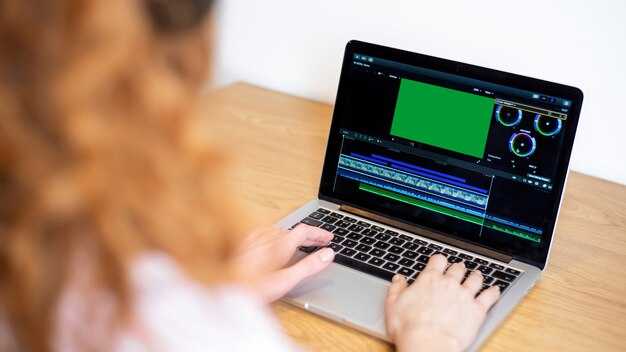
Inizia con un set conciso di prompt e sceneggiature stringate: 60-90 secondi totali, 3 scene e una chiara call to action. Usa il sito web di Renderforest per mappare i prompt alle scene, mantenendo la voce umana autentica per educatori in tutto il mondo.
Raccogli i materiali: immagini royalty-free, icone e brevi clip senza complicare le licenze. Se ti mancano gli asset, usa librerie di modelli che forniscono immagini integrate. Allinea gli asset alle preferenze regionali in diverse aree e fornisci sottotitoli multilingue; poi scarica il file creato per l'uso locale.
Modello e transizioni: seleziona un modello narrativo che corrisponda alla sceneggiatura; inserisci transizioni per il ritmo; usa esplainer per chiarire idee complesse, utilizzando tecnologia moderna per semplificare la creazione dei passaggi.
Accoppiamento sceneggiature e prompt: mappa ogni prompt a una scena e a una storia; mantieni le battute brevi e dirette; abbina le immagini alla narrazione e al testo a schermo; usa i materiali per illustrare i punti.
Confronti Powtoons e maker: valuta come un approccio maker con asset powtoons si confronta con i modelli Renderforest; usalo per pianificare regioni e la diffusione globale.
Pubblicazione e distribuzione: pubblica sul tuo sito web; crea post che rimandano al file scaricabile; mantieni il controllo del branding e degli explainer; sia che tu condivida pubblicamente o all'interno di un corso, assicurati l'accessibilità.
Controlli qualitativi e iterazione: controlla la qualità delle immagini, il tempismo dei fotogrammi e le transizioni; verifica che i sottotitoli e le sceneggiature soddisfino gli standard di accessibilità; non affidarti mai a un singolo modello; raccogli feedback da studenti ed educatori.
Dal Prompt al Video: Tradurre il Testo in Narrazioni Visive
Raccomandazione: converti una singola frase in uno storyboard e un elenco minimo di asset prima di qualsiasi fase di produzione per mantenere i post in linea e l'argomento chiaro per chiunque sia coinvolto.
- Definisci l'idea centrale: cattura l'elemento più importante in una frase; il punto deve essere umano e azionabile per un team. Questo crea coerenza nei flussi di lavoro organizzativi e riduce il ping-pong con l'editor e il team, inclusa Sarah.
- Bozze e ritmo: produci 3-5 bozze che delineino scene, transizioni e la forma di ogni inquadratura; confronta le sequenze complete per identificare lacune e assicurati che le transizioni risultino naturali.
- Guida al design: seleziona una palette di colori, tipografia e un linguaggio visivo che corrisponda all'argomento e al pubblico; documenta le decisioni in un brief di design vivo a cui chiunque può accedere.
- Flusso di lavoro e ruoli: assegna le responsabilità (editor, designer, ricercatore) e stabilisci una scadenza il lunedì per la prima revisione; questo mantiene il processo professionale e prevedibile.
- Adattamento e personalizzazione: adatta la narrazione per pubblici diversi – professionali, organizzativi, personalizzati – preservando la coerenza; usa blocchi modulari che possono espandersi o essere scambiati senza interrompere il flusso.
- Discussione dell'argomento e allineamento: quando il team discute il brief, assicurati che Sarah comprenda l'argomento; in caso contrario, riformula la descrizione prima di procedere.
- Asset e accesso: raccogli gli asset in anticipo, organizzali in una cartella condivisa e mantieni bozze versionate per evitare rifacimenti all'ultimo minuto.
- Controlli qualitativi: esegui revisioni rapide con l'editor e gli stakeholder; raccogli feedback come note e implementa le modifiche nella bozza successiva, invece di rifare tutto.
- Percorso più efficiente: progetta una timeline con tappe chiare (concetto, bozza, revisione, finale) ed espandi solo quando la chiarezza è forte.
Creazione di Prompt per Stili: Tono, Ritmo e Immagini

Usa un modello di prompt in tre parti per definire tono, ritmo e immagini prima della produzione: tono, ritmo, immagini. Questo approccio produce risultati rapidi e ripetibili e minimizza il ping-pong tra iterazioni settimanali.
- Tono – Definisci voce e atmosfera con ancoraggi concreti. Usa descrittori che corrispondono a una consegna diretta: caldo, naturale, sicuro, o diretto. Includi un riferimento fidato dal modello che scegli e specifica le varianti linguistiche per pubblici diversi (lingue: it, en, es, fr, de, pt, zh, ecc.). Allega indicazioni sull'accento se è importante per la cadenza. Non fare mai affidamento su stati d'animo vaghi; ancora il tono a due o tre righe di esempio in modo che il modello possa riprodurlo in modo coerente. Questo allineamento riduce l'attrito tra gli asset e aiuta quando lo studio collabora con la libreria aziendale. Ciò migliorerà la coerenza tra voiceover e testo a schermo.
- Ritmo – Imposta la cadenza per la narrazione e le transizioni. Specifica il numero di parole per frase (4-12 parole) e la durata delle scene (4-6 secondi per promo, 8-12 secondi per explainer, 20-30 secondi per approfondimenti). Usa punti di riferimento rapidi e di respiro; codifica pause di 0,5-1,5 secondi tra i blocchi. Allinea il ritmo al tono in modo che le clip più energiche risultino coerenti; questo accelera il flusso di lavoro settimanale e minimizza le modifiche. Se lavori con sceneggiature, mantieni i prompt concisi e attuabili, e lascia che il modello gestisca la consegna direttamente.
- Immagini – Nomina lo stile visivo con regole esplicite. Specifica la palette di colori (luminosa, alto contrasto, o ombre morbide), l'illuminazione e la composizione (primo piano, medio, ampio). Elenca motivi o asset (forme geometriche, texture naturali, icone) ed enfatizza rappresentazioni diverse. Includi suggerimenti per la localizzazione (varianti linguistiche) e l'uso dell'accento per la coerenza del brand. Indica se le immagini possono essere create direttamente dai prompt o da una libreria fidate; assicurati che gli asset siano allineati al tono e alla cadenza scelti. Abbina le immagini al voiceover che rispecchia lo stesso stile e scegli 2-3 motivi distintivi per la settimana per creare riconoscimento. Se hai bisogno di qualcosa di veloce, scegli un unico stile di studio e scala in seguito con asset aggiuntivi; la maggior parte dei team ottiene i migliori risultati standardizzando questo approccio in tutto il modello. Per il flusso di lavoro, puoi usare videoscribe per testare animazioni e immagini in parallelo ai prompt.
Suggerimenti pratici da implementare rapidamente: scegli un modello di cui ti fidi, definisci un set di 3 prompt (tono, ritmo, immagini) ed esegui uno sprint di 1 settimana per confrontare i risultati tra lingue e asset. Fornisci chiari segnali di successo (coinvolgimento, comprensione, memorizzazione) e itera sui migliori performer. Quando scalerai, i prompt migrati dovrebbero rimanere coerenti su tutti gli asset, garantendo un'esperienza del pubblico naturale e coesa – sia che tu stia aggiornando una singola campagna o costruendo una libreria per l'azienda.
Selezione di Modelli e Scene in Renderforest
Iniziando con un modello vuoto allineato al tuo mercato, abilita i suggerimenti basati sull'IA per popolare automaticamente le scene e collegarle con transizioni chiare.
Con molti strumenti nella libreria, scegli un modello iniziale che si adatti al tuo obiettivo e personalizza le scene per riflettere il tuo pubblico, utilizzando un look professionale e i colori del brand.
ecco un conteggio delle scene consigliato: per un pezzo di 60–90 secondi, punta a 8–10 scene; mantieni ogni segmento a 7–12 secondi per mantenere il ritmo ed evitare sovraccarichi.
identifica il punto centrale per ogni blocco e usa un frame introduttivo conciso per coinvolgere gli spettatori; questo mantiene il processo di onboarding fluido e riduce il carico cognitivo.
le transizioni devono essere deliberate: limitale a 1–2 passaggi fluidi tra le scene; riserva una singola transizione d'accento per i momenti chiave per preservare un flusso pulito e conversazionale.
gli asset generativi possono fornire varianti rapidamente, mantenendo il controllo dei tuoi elementi visivi e preservando la coerenza del brand; abilitando template che scalano all'infinito, puoi dedicare tempo alla rifinitura di colori, tipografia e loghi per un risultato completo e professionale. Quando distribuire: genera varianti dopo la prima passata e confronta le metriche nell'anteprima.
per un flusso di lavoro aziendale, salva una serie completa di template e condividila con i colleghi per un rapido onboarding e cicli di approvazione; questo fa risparmiare tempo e garantisce coerenza tra gli output.
Impostazioni di Esportazione: Risoluzione, Frequenza dei fotogrammi, Codec e Formati di Output
Raccomandazione: seleziona 1080p a 30 fps con H.264 in MP4 per un'ampia compatibilità; aggiorna a 4K a 30 fps o 60 fps e H.265 quando la fedeltà è importante e la larghezza di banda è limitata. Questo tipo di preimpostazione mantiene il ritmo costante e pronto per la pubblicazione, consentendoti comunque di dedicare tempo a contenuti di livello superiore, se necessario.
Risoluzione: per la distribuzione sul web, 1080p (1920x1080) offre ottimi effetti visivi con dimensioni di output moderate; 4K (3840x2160) aggiunge dettagli per display di grandi dimensioni o piattaforme di fascia alta. Se il tuo pubblico spazia da mobile a desktop, fornisci un fallback a 720p per garantire lo streaming pronto su reti più lente. Per progetti multilingue, assicurati che le didascalie e le sovrapposizioni grafiche siano allineate con la lingua e mantieni i caratteri leggibili alla risoluzione scelta. Questa strategia aiuta le varianti linguistiche e gli elementi visivi a rimanere chiari su dispositivi e piattaforme.
Frequenza dei fotogrammi: 24 fps offre un ritmo cinematografico; 30 fps è lo standard per la maggior parte dei contenuti; 60 fps aumenta la chiarezza del movimento per scene veloci. Quando sincronizzi le voci fuori campo e le didascalie, mantieni il ritmo allineato con la frequenza dei fotogrammi scelta per evitare deviazioni, soprattutto con voci simili a quelle umane che si basano sui tempi naturali. Questo approccio supporta un buon coinvolgimento senza sovraccaricare la larghezza di banda del pubblico.
Codec e contenitore: per un'ampia compatibilità, usa H.264 con un contenitore MP4; H.265 (HEVC) offre una qualità superiore a bitrate simili, ma potrebbe richiedere lettori più recenti. Se il tuo flusso di lavoro utilizza software di editing che preferisce alta efficienza, considera ProRes o un altro codec intraframe in MOV per pipeline professionali. Assicurati che il codec scelto supporti le tue piattaforme di output target, inclusi powtoons, il tuo sito web e altri canali di distribuzione.
Formati di output e ottimizzazione: MP4 rimane il più versatile come impostazione predefinita; WebM funziona bene per ambienti HTML5 con browser moderni; MOV è comune nelle pipeline di editing. Produci almeno due varianti, ad esempio MP4 con H.264 e WebM con VP9 dove supportato. Quando i tuoi contenuti includono voci fuori campo e didascalie, assicurati che l'audio sia AAC a 128–320 kbps e 48 kHz, in sincronia con gli elementi visivi per un'esperienza coesa. Per i team di onboarding, i feedback di Trustpilot evidenziano spesso il valore di esportazioni stabili e pronte per la pubblicazione; dedica una serie di profili di codifica e flag avanzati (come l'intervallo di fotogrammi chiave e il livello del profilo) per accelerare il lavoro futuro. I flussi di lavoro Powtoons e la pubblicazione sul sito web beneficiano di un pacchetto di output coerente che puoi riutilizzare in tutti i progetti. Approfitta di un ciclo di test dedicato per confrontare i risultati tra formati e dispositivi al fine di trovare la soluzione migliore per il tuo pubblico.
Infine, utilizza una checklist di esportazione concisa per mantenere alta la prontezza: verifica la lingua, assicurati della leggibilità dei caratteri, testa il ritmo su dispositivi con larghezze di banda variabili e conferma che tutti gli asset rimangano sincronizzati con l'audio. Non fare mai affidamento su un'unica impostazione; prendi una piccola raccolta di profili e applicali secondo necessità per supportare un pubblico coinvolto su diverse piattaforme, comprese le uscite settimanali e oltre. Questo approccio produce asset preziosi e pronti che scalano all'infinito e supportano un'ottima esperienza di onboarding sul tuo sito web.
| Impostazione | Opzioni / Valori | Razionale |
|---|---|---|
| Risoluzione | 720p (1280x720), 1080p (1920x1080), 4K (3840x2160) | Bilancia nitidezza e dimensioni di output; fornisce un fallback per dispositivi con larghezza di banda limitata |
| Frequenza dei fotogrammi | 24, 30, 60 fps | 24 per un'atmosfera cinematografica; 30 per lo standard; 60 per un ritmo elevato |
| Codec | H.264, H.265 (HEVC), ProRes (MOV) | H.264 per ampia compatibilità; HEVC per efficienza; ProRes per pipeline di editing |
| Contenitore / Output | MP4, WebM, MOV | MP4 per il web; WebM per HTML5; MOV per flussi di lavoro di editing |
| Bitrate (clip) | 1080p: 8–12 Mbps; 4K: 35–60 Mbps | Regola in base al movimento e al colore; un movimento maggiore richiede più larghezza di banda |
| Audio | AAC, 48 kHz, 2ch, 128–320 kbps | Parlato chiaro; garantisce la sincronizzazione con gli elementi visivi |
Automazione e Elaborazione Batch: Scalare la Creazione di Video AI
Il **controllo** delle esecuzioni in batch si ottiene tramite un piano centralizzato che orchestra i task, assegna ID e scrive log di audit. Utilizza un unico set di *parametri* per evitare deviazioni; mantieni gli input *precisamente* specificati per migliorare ripetibilità e affidabilità. Offri baseline personalizzate per team per adattare i risultati e scrivi un riepilogo in un registro centrale.
adotta un batch runner a cinque nodi con worker paralleli che elaborano immagini e metadati contemporaneamente, **per aumentare** il throughput fino a 2–4 volte per i carichi di lavoro enterprise. Usa template riutilizzabili per standardizzare gli output, ridurre le modifiche e supportare un flusso di produzione **semplificato**. Inoltre, abilita varianti personalizzate per diversi reparti pur preservando un nucleo comune. Allega automaticamente didascalie, tracce di traduzione e dati di provenienza senza intervento umano.
per la governance, mantieni un repository **principale** di asset e un registro delle modifiche che annota le modifiche. Implementa un flusso di lavoro di approvazione dei contenuti che lascia comunque automatizzata la maggior parte dei task, consentendo a un revisore umano di intervenire quando si verificano flag di qualità.
l'onboarding dovrebbe coprire i ruoli *necessari*: ingegnere, **creatore**, educatori; un percorso di configurazione in cinque passaggi; un'interfaccia utente basata su clic per regolare l'ambito dell'argomento. Il team può *imparare* rapidamente eseguendo cinque cicli di esempio dal kit di partenza, riducendo il tempo di rampa.
traduci gli asset per pubblici multilingue mappando una matrice di traduzione a ogni argomento e codici alfanumerici; questo aumenta la portata e mantiene alta la qualità della lingua. Il sistema dovrebbe *inserire* i risultati della traduzione in un catalogo ricercabile e preservare i conteggi dei **caratteri** per evitare troncamenti nelle didascalie o nelle miniature.
tieni traccia delle metriche KPI: tempo medio per batch, tasso di errore e quote di revisione umana. Utilizza dashboard per evidenziare i principali colli di bottiglia e presentare ottimizzazioni *suggerite*. Un ciclo di feedback **semplificato** consente agli educatori di proporre miglioramenti, che *scrivono* nuovamente nella libreria dei template.
per scalare, consenti ai team di avviare nuovi pipeline con un singolo *clic*, riutilizzare cinque template principali e fare affidamento su controlli automatizzati per validare gli input prima di trasformarli in task. Questo rende il processo resiliente a rapidi cambiamenti di argomento e a set di asset in evoluzione, mantenendo la supervisione umana dove necessario. Inoltre, rendi gli output più coerenti applicando regole di convalida centralizzate.