
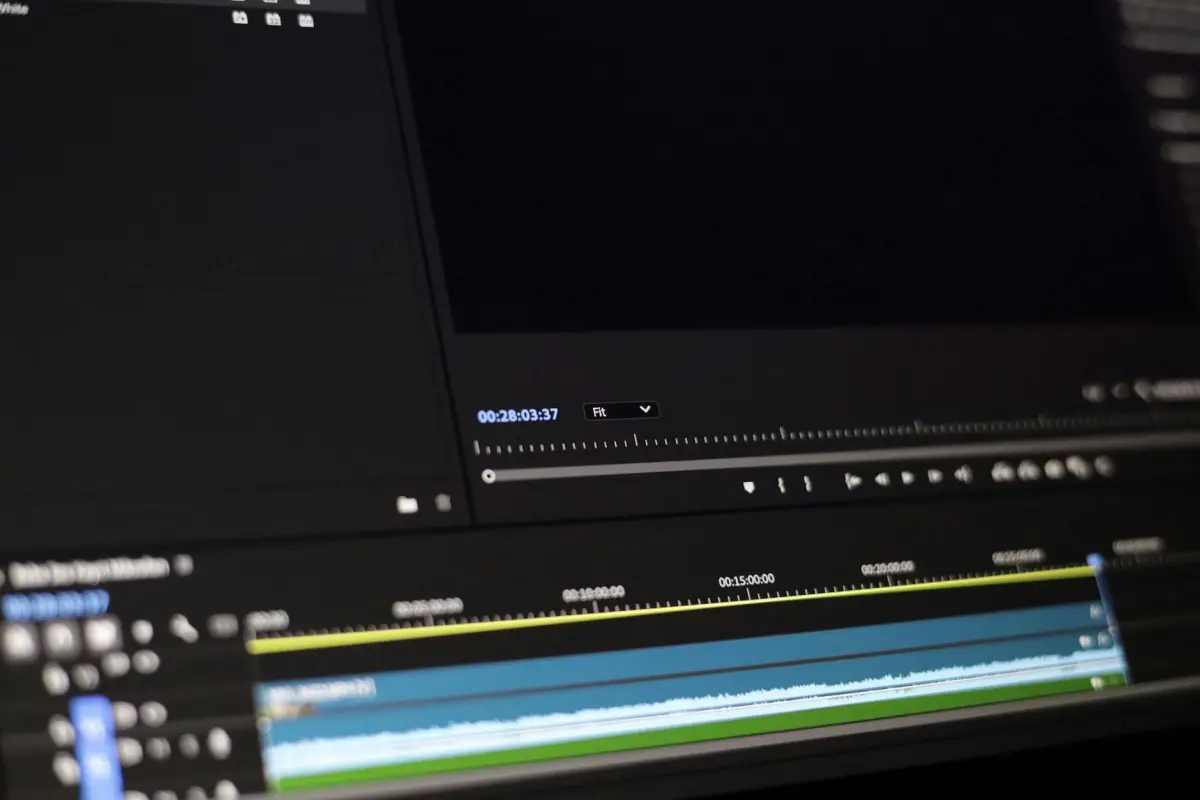

Recomendación: Corta las pausas con una sola herramienta, sin coste y sin pasos innecesarios; tu metraje sonará más limpio, crea interacción y ahorra tiempo de finalización.
Empieza dejando que la herramienta escanee los momentos de silencio, permitiendo cortar las pausas y córtalas. Confía en las señales de audio para poder trabajar con ruido de fondo, pero evita cortar el diálogo. Haz esto rápidamente y manualmente donde sea necesario; el resultado es un corte más limpio que ahorrará tiempo de finalización y mantendrá a la audiencia enganchada.
Para preservar el ritmo, alinea los cortes con momentos clave del metraje. Usa la cámara como ancla y aplica transiciones fluidas para evitar brusquedad. Este enfoque reduce el ruido de fondo durante la reproducción, hace que el clip se sienta más ajustado y apoya la interacción en todas las plataformas.
Con este flujo de trabajo, terminarás más rápido, nunca tendrás que rehacer secciones voluminosas y evitarás cortes redundantes. El proceso simplificado funciona en cualquier configuración, mantiene el tempo constante y te ayuda a crear una secuencia sin ruido que suena natural para los espectadores en todos los dispositivos.
En resumen, este conjunto de herramientas sin coste ayuda a reducir las pausas, preservar la energía y mantener el impulso, para que la audiencia se mantenga enganchada para siempre sin la rutina manual.
Flujo de trabajo rápido y gratuito para eliminar pausas

Comienza duplicando la línea de tiempo en un proyecto adicional. También escanea la pista de audio en busca de silencio y coloca marcadores de corte para acortar las pausas, preservando la cadencia natural y evitando la sobreedición. Haz una prueba rápida en una sección corta para confirmar el resultado.
transcribe el audio para identificar los tiempos de inicio y fin; este paso guía dónde ajustar el flujo sin sacrificar el significado. Usa una herramienta gratuita para generar la transcripción y exporta un archivo de texto como referencia.
Alinea los cortes con las indicaciones de la transcripción para que el ritmo del vídeo se mueva con el habla; las acciones de la cámara deben coincidir con los límites de las palabras para mantener el impulso. El acabado general se mantiene natural y con calidad de estudio.
Usa un editor sin coste para aplicar comandos de recorte y ediciones en forma de ripple que reduzcan los segmentos silenciosos sin mover momentos esenciales. Este enfoque se centra en eliminar solo silencios largos mientras se preserva el sonido esencial. ¡Puf!, las pausas desaparecen y la grabación mantiene el equilibrio.
Renderiza un borrador y revísalo en pantallas móviles y de escritorio; si es necesario, ajusta los niveles para mayor claridad. Asegúrate de que la alineación de la transcripción siga siendo precisa para que el flujo vocal coincida con las imágenes.
Publica un clip corto para aumentar el alcance viral; un comercializador puede reutilizar la transcripción para vídeos de redes sociales, mientras que un educador la reutiliza para lecciones. Los flujos de trabajo robóticos aceleran las tareas de escaneo sin coste adicional, y esto permitirá a tu equipo escalar la producción.
Los resultados informados muestran que la audiencia se mantiene enganchada. En general, la salida se mantiene natural, con un acabado de calidad de estudio y audio claro. El enfoque también ayuda a los espectadores a mantenerse con el contenido.
Formatos y límites de tamaño de carga
Recomendación: Exporta a MP4 usando vídeo H.264 y audio AAC, 1920x1080, 30fps; mantén cada archivo por debajo de 4 GB y los segmentos por debajo de 60 minutos para mejorar drásticamente la velocidad de procesamiento y la interacción para este flujo de trabajo.
Los formatos compatibles incluyen MP4 (H.264), MOV y WebM; para importaciones de solo audio, usa MP3 o AAC para superponerlos junto a las imágenes; añade subtítulos como archivos SRT o WebVTT y aplícalos en la línea de tiempo para accesibilidad.
Relaciones de aspecto: 16:9 para la mayoría de los feeds; 1:1 para publicaciones cuadradas; 9:16 para clips verticales; para contenido de formato largo, planifica una relación de aspecto consistente en todas las secciones para evitar transiciones incómodas.
Los límites de carga dependen del plan; consulta la fuente en el Centro de Ayuda de Clipchamp para conocer las cifras exactas. Comprime las fuentes originales antes de importar para ahorrar tiempo y preservar la calidad general al publicar en la barra de herramientas y guardar para siempre. Después del procesamiento, puedes acreditar las fuentes y aplicar los toques finales con subtítulos y alineación de audio para mantener alta la interacción.
Detección y selección automática de pausas

Comienza con un flujo de trabajo de dos pasadas en cada grabación: primero escaneando la energía para marcar silencios cortos, luego marca las selecciones candidatas para las ediciones.
Establece criterios de silencio alrededor de -40 dBFS durante 0.25–0.35 segundos para marcar una pausa; en entornos ruidosos ajústalo a -42 dBFS, en estudios silenciosos usa -38 dBFS. Valida con el piso de ruido espectral y el contexto del tiempo de ejecución para evitar falsos positivos que degraden la claridad del archivo.
La lógica de selección favorece los cortes al final de las frases o en las pausas naturales del ritmo, mantiene intactas las palabras circundantes y utiliza el corte para garantizar que las transiciones sigan siendo fluidas. Así es como los momentos incómodos se minimizan sin sacrificar el significado o el flujo, y apoya la búsqueda del equilibrio adecuado entre brevedad y exhaustividad.
Exporta un archivo marcado con señales de edición; esto da crédito a la entrada del comercializador y acelera las iteraciones que los espectadores encuentran interesantes. Guarda versiones limpias que se puedan reutilizar para otro proyecto, al tiempo que se conserva un registro de la eliminación de derivaciones más largas o frases de relleno para referencia futura en el archivo.
Transcribe alrededor de los cortes para preservar el contexto; la alineación de palabras ayuda a verificar que la intención hablada permanece intacta y reduce el ruido en los subtítulos. El parloteo innecesario se puede marcar para su eliminación o la eliminación dirigida de relleno, manteniendo el mensaje central ajustado y claro.
Aquí tienes una lista de verificación práctica que sigue siendo útil: comienza con ajustes preestablecidos sintonizados para diferentes tipos de archivos, ejecuta un escaneo rápido en cada fragmento, registra las ediciones para documentar dónde ocurrió la eliminación y vuelve a escanear después de exportar para confirmar un corte listo para viralizar que pueda permanecer para siempre y servir como plantilla reutilizable para otra grabación en esta serie. Aquí, el objetivo es maximizar el crédito, minimizar la incomodidad y ofrecer una experiencia nítida para la audiencia.
Ajuste manual: Modificar puntos de inicio/fin
Selecciona el punto de inicio y el punto final exactos para cada clip en la línea de tiempo, centrándote en silencios y pausas para ajustar drásticamente el contenido. Apunta a silencios inferiores a 0.2–0.4 segundos y pausas superiores a 0.6 segundos para mantener un ritmo constante.
Escanea la grabación para localizar pausas, silencios y tiempos irregulares; coloca marcadores de corte en las pausas largas, luego recorta estas secciones para mantener un flujo natural.
Utiliza el corte para eliminar partes innecesarias mientras preservas el mensaje principal; asegúrate de que las voces del educador y del comercializador sigan siendo claras y creíbles, y mantén el movimiento de la cámara estable para evitar vibraciones.
Al ajustar los marcadores de inicio/fin, apunta a un ritmo largo y uniforme; evita cortes abruptos que creen una sensación desigual, y deja que el brillo en las imágenes emerja de transiciones limpias.
Las métricas informadas muestran un aumento de la interacción tras ajustar las pausas; el contenido ahora impresiona a la audiencia y obtiene crédito por la experiencia del educador; los vídeos demuestran un flujo más cohesivo.
Consejos prácticos: etiqueta secciones largas para evitar cortes demasiado agresivos; mantén los subtítulos y las palabras concisos para minimizar frases innecesarias; un ajuste a escala de milisegundos puede mejorar drásticamente la retención de espectadores. Si un corte no se ve bien, revisa la parte eliminada y vuelve a insertarla para preservar el contexto.
Revisión de avances: Verificar cortes antes de exportar
Previsualiza cada corte con repeticiones en movimiento, desplázate por la línea de tiempo usando las teclas de flecha y confirma el tiempo a velocidad 1x antes de exportar el conjunto de clips.
Asigna un presupuesto de tiempo por corte: 0.5–1.5 segundos; si una pausa o ruido se extiende más allá de 0.25 segundos, acórtalo en consecuencia.
Usa la barra de herramientas para activar la previsualización automática; hacer clic inicia un bucle para que puedas observar la secuencia hasta que estés satisfecho con las transiciones.
Inspecciona las transiciones en busca de un timing robótico; evita cambios abruptos; los momentos de "¡puf!" destacan, así que suaviza drásticamente los bordes para un flujo natural que mantenga a los espectadores enganchados y evite distracciones.
Planifica y almacena dos versiones: un archivo maestro y una copia recortada; cero riesgo y comparación más fácil para revisiones.
Los metadatos de la fuente deben capturarse: fuente, marca de tiempo, ángulo de cámara; esto ayuda a encontrar clips rápidamente durante el trabajo posterior.
Después de verificar, añade un mensaje conciso en las notas para describir las decisiones de corte; esto ayuda a los colaboradores y facilita la reutilización en proyectos virales.
| Paso | Acción | Herramienta/Notas | Tiempo/Criterios |
|---|---|---|---|
| 1 | Habilitar el movimiento de repeticiones en la línea de tiempo; avanzar con las flechas | Comprobación a 1x velocidad | validación en tiempo real |
| 2 | Establecer presupuesto de tiempo por corte | Ventana de 0,5 a 1,5 s | acortar si hay huecos > 0,25 s o aparece ruido |
| 3 | Activar previsualización automática en la barra de herramientas; hacer clic para reproducir en bucle | previsualización automática | repetir hasta que esté limpio |
| 4 | Comprobar transiciones y tiempos | observar el tiempo robótico; ajustar gradualmente | asegurar un flujo suave |
| 5 | Guardar versiones del plan | master vs recortado | riesgo cero |
| 6 | Grabar metadatos | источник, marca de tiempo, ángulo de cámara | rastreable |
| 7 | Anotar cortes en notas | campo de mensaje | ayuda a los colaboradores; viable para campañas virales |
Configuración de Exportación: Formatos, Resolución y Descarga
Seleccione MP4 (H.264) a 1080p/30fps con 12 Mbps de vídeo y 192 kbps de audio; establezca la velocidad de fotogramas en automático cuando la fuente sea variable para mantener la reproducción fluida para los espectadores.
Para mejorar la calidad en proyectos de alta gama, pase a 4K (2160p) con 35–60 Mbps de vídeo y 256–320 kbps de audio; esto mejora drásticamente el detalle general para pantallas grandes y la reproducción informada en las sesiones de grabación.
- Formatos: MP4 (H.264) sigue siendo la opción predeterminada para la mayoría de las plataformas; WebM (VP9/AV1) puede mejorar la eficiencia en navegadores compatibles; para trabajos de archivo o flujos de trabajo de posproducción, MOV o ProRes son una opción, aunque los archivos son más grandes.
- Resolución y velocidad de fotogramas: 1080p a 30fps por defecto; cambiar a 60fps para acción; para un estilo cinematográfico, 24 o 25fps; 4K (2160p) es ideal para pantallas grandes y para el futuro.
- Velocidad de bits y audio: 1080p 8–12 Mbps; 4K 35–60 Mbps; audio 192–320 kbps; frecuencia de muestreo 44.1 o 48 kHz; use CBR para streaming predecible, o VBR para ahorrar espacio sin comprometer la calidad de la grabación.
- Configuración de calidad: intervalo de fotogramas clave 2 segundos; perfil Alto; nivel 4.2 o superior; espacio de color Rec.709; habilite el escaneo durante la exportación para detectar artefactos; esto ayuda a que el flujo de trabajo general se mantenga consistente.
- Entrega y nomenclatura: mantenga un esquema de nomenclatura limpio que incluya proyecto, versión y fecha; arrastre el archivo a la ubicación de descarga deseada; hacer clic en exportar inicia el proceso en la barra de herramientas; después, verifique el tamaño del archivo y la duración, y asegúrese de que el audio suene coincida con el vídeo. Si se informan problemas, una reexportación rápida sin volver a codificar mantiene el progreso, lo que es un movimiento práctico para el flujo de trabajo del creador.
Ya sea que los destinos de distribución sean YouTube, Vimeo o un reproductor privado, la opción de exportación debe mantener el vídeo y el audio sincronizados. Encuentre un equilibrio entre calidad y tamaño de archivo; las comprobaciones automáticas en la barra de herramientas ayudan a confirmar la precisión. Este flujo de trabajo está impulsado por codificadores fiables y admite un camino fluido para grabar, crear y publicar para los espectadores, y para el creador en general. Este enfoque ahorra tiempo que de otro modo se gastaría en probar múltiples codificaciones.




