
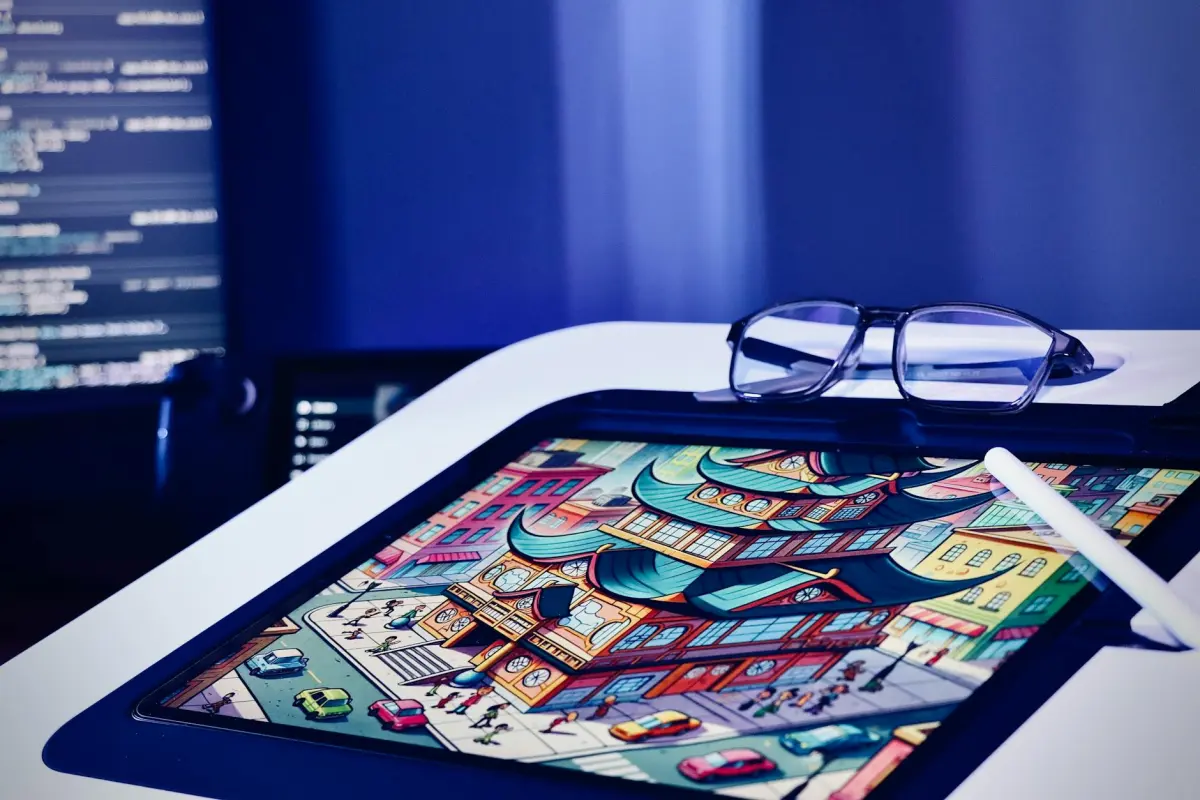

Χρησιμοποιήστε κλιπ διάρκειας 5–15 δευτερολέπτων και επιλέξτε ένα στυλ-στόχο: καθαρές περιφέρειες, επίπεδη σκίαση και μια ζωντανή αλλά ελεγχόμενη παλέτα. Διασφαλίστε ότι η μετάβαση μεταξύ των καρέ παραμένει *ομαλή*, ώστε η κίνηση να αισθάνεται φυσική και όχι τρεμουλιαστή. Βασιστείτε σε ένα ενσωματωμένο μοντέλο που έχει ρυθμιστεί για ποικιλομορφία μέσων για να παρέχει συνεπή αποτελέσματα στα 1080p και υψηλότερα.
Για να το υλοποιήσετε γρήγορα, συγκεντρώστε τα κατάλληλα εργαλεία: ένα ενσωματωμένο μοντέλο εκπαιδευμένο σε ποικίλα μέσα, έναν εξαγωγέα καρέ, έναν επεξεργαστή για συγχρονισμό και έναν διαχειριστή χρωμάτων. Θα χρειαστείτε ζωντανό υλικό ως είσοδο. Εάν δεν διαθέτετε αντιστοιχισμένα δεδομένα, χρησιμοποιήστε αυτο-εποπτευόμενη μάθηση για να ανακαλύψετε την ευθυγράμμιση μεταξύ των καρέ. Αυτή η προσέγγιση σας επιτρέπει να επαναλάβετε μέχρι να δείτε συνεπείς περιφέρειες και ένα στυλ καρτουνίστας, παρέχοντας αβίαστα μια συνεκτική εμφάνιση που υποστηρίζει *μουσικά* ερεθίσματα.
Στη φάση της επεξεργασίας, παρακολουθήστε τα τεχνουργήματα: χρονικό τρεμόπαιγμα, μετατόπιση χρώματος και υπερβολική εξομάλυνση περιγραμμάτων. Ρυθμίστε την στάθμιση ώστε οι τόνοι του δέρματος να παραμένουν *ρεαλιστικοί* και οι υφές να είναι ευανάγνωστες. Αυτό *θα* φαίνεται συνεκτικό όταν κλιμακώσετε από ένα μεμονωμένο κλιπ σε ένα *πλήρες* έργο, δίνοντας στους επεξεργαστές χώρο να ακονίσουν τις λεπτομέρειες χωρίς να θυσιάσουν την ατμόσφαιρα καρτούν. Η διαδικασία βοηθά σας να αναπτύξετε δεξιότητες, ενώ η ροή εργασίας διαχειρίζεται τον όγκο της δουλειάς.
Κοιτάζοντας μπροστά, υιοθετήστε μια αρθρωτή προσέγγιση: διατηρήστε την βασική διέλευση ξεχωριστή από τις προσαρμογές υφής και φωτισμού. Μπορείτε να ανακαλύψετε νέες εμφάνιδες απλώς αντικαθιστώντας τις στάθμιση στυλ και επανεκτελώντας τη ροή εργασίας. Τα αποτελέσματα θα είναι *ομαλά* και *στυλιζαρισμένα* σε μορφές μέσων, από *κοινωνικά* κλιπ έως μεγαλύτερες επεξεργασίες· για ομάδες που αναζητούν μια συνεπή αισθητική, αυτό θα ενισχύσει ταχύτερες δημοσιεύσεις και συνεχή πειραματισμό.
Video-to-Video AI: Πραγματικές σκηνές σε καρτούν – Πρακτική κριτική γεννήτριας
Σύσταση: Επιλέξτε μια γεννήτρια με GPU που παρέχει γρήγορες προεπισκοπήσεις, μια ευρεία σουίτα μοντέλων στυλιζαρίσματος και προ-ρυθμίσεις εξαγωγής με ένα κλικ που ευθυγραμμίζονται με την τελική παράδοση. Εκτελέστε πολλά σύντομα κλιπ μέσω του εργαλείου και συγκρίνετε την πιστότητα κίνησης, τη μεταχείριση περιγραμμάτων και την επεξεργασία υφών μεταξύ των στυλ. Αυτή η βάση ενημερώνει τη ροή εργασίας που θα κλιμακώσετε για παραγωγή χωρίς σπατάλη επαναλήψεων, και μπορείτε εύκολα να βελτιώσετε την εμφάνιση για να ταιριάζει αβίαστα στο κοινό-στόχο.
Τι να δοκιμάσετε πρώτα: διατήρηση κίνησης, ευκρίνεια περιγραμμάτων και ρεαλισμός υφής μεταξύ των επιλογών. Χρησιμοποιήστε πολλαπλές *επιδείξεις* που παρέχονται από την πλατφόρμα, συγκρίνετε την έξοδο με τα καρέ πηγής και κρίνετε εάν η *στυλιζάρισμα* διατηρείται σε μεγαλύτερες λήψεις. Ελέγξτε τη σταθερότητα εξαγωγής για να αποφύγετε τρεμόπαιγμα και αναφέρετε πρότυπα από *renderforests* και άλλα αξιόπιστα *εργαλεία* για να διασφαλίσετε συνεπείς εμφανίσεις.
Συμβουλές ροής εργασίας παραγωγής: ορίστε σταθερό ρυθμό καρέ (24–30 fps), εφαρμόστε προσέγγιση δύο περασμάτων (βασική στυλιζάρισμα, στη συνέχεια ρύθμιση χρώματος και περιγράμματος) και επεξεργαστείτε μαζικά κλιπ για να διατηρήσετε συνεπή το χρονισμό. Αυτή η προσέγγιση διατηρεί τα ερεθίσματα κίνησης και αποδίδει μια συνεκτική τελική ροή σε μια ακολουθία, ενώ κλιμακώνεται εύκολα από ένα μοναδικό βίντεο σε μια βιβλιοθήκη επεισοδίων.
Οδηγίες έτοιμες για δημιουργούς: για vlogger ή διαφημιστικά κλιπ, στοχεύστε σε μια εμφάνιση που είναι ελκυστική αλλά αναγνώσιμη σε κινητές οθόνες. Ξεκινήστε με τρία προ-ρυθμιστικά, παράγετε ένα δοκιμαστικό reel 30–60 δευτερολέπτων και συγκρίνετε σε διαφορετικές συσκευές. Εξάγετε σε 1080p ή 4K, επιλέγοντας κωδικοποιητές (H.264 ή H.265) με βάση τις ανάγκες της πλατφόρμας. Μια απλοποιημένη ροή εργασίας "κλικ-προς-εμφάνιση" μπορεί να μειώσει δραματικά τον χρόνο παραγωγής, διατηρώντας εν τω μεταξύ την ξεχωριστή ρεαλιστική σας αίσθηση.
Τεχνουργήματα και διαχείριση κινδύνων: αναμένετε περιστασιακά τεχνουργήματα με γρήγορη κίνηση ή πυκνές υφές· μειώστε την ισχύ της στυλιζαρίσματος ή ρυθμίστε την αντιστάθμιση κίνησης για να ελαχιστοποιήσετε το τρεμόπαιγμα. Εάν τα χρώματα μετατοπίζονται μεταξύ των σκηνών, εφαρμόστε ένα καθολικό πέρασμα χρωματικής αντιστοίχισης πριν από την απόδοση του τελικού κοψίματος. Καταγράψτε τις ρυθμίσεις που χρησιμοποιήθηκαν για κάθε έργο για να απλοποιήσετε τη μελλοντική εργασία και να διατηρήσετε τη ζωή-διατηρώντας οπτική συνέπεια.
Κόστος, αδειοδότηση και ροές εργασίας: πολλές επιλογές προσφέρουν δωρεάν βαθμίδα με περιορισμένη ανάλυση ή υδατογραφήματα· για εμπορικά έργα, επενδύστε σε μια άδεια που καλύπτει τη χρήση παραγωγής. Προτιμήστε μοντέλα που ενημερώνονται τακτικά και παρέχουν ποικίλα στυλ. Βεβαιωθείτε ότι η εξαγωγή περιλαμβάνει την προτιμώμενη ανάλυση, ρυθμό μετάδοσης bit και χρωματικό χώρο. Χρησιμοποιήστε *δείγματα* για να βαθμονομήσετε την εμφάνιση πριν από τη δέσμευση σε μια εκτέλεση παραγωγής και παρακολουθήστε τον αντίκτυπο στο μάρκετινγκ με σύντομα, μετρημένα βίντεο.
Πώς να προετοιμάσετε το υλικό πηγής για καρτουνίσμα
Δομήστε το υλικό σας σε συνοπτικά, γεμάτα δράση κλιπ: 6–12 δευτερολέπτων το καθένα, με σαφή θέματα και προβλέψιμη κίνηση για να υποστηρίξετε καθαρό στυλ. Καταγράψτε ζωντανό υλικό στα 24–30 fps για να διατηρήσετε τη φυσική χρονική ρύθμιση, στη συνέχεια ευθυγραμμίστε τις επεξεργασίες με τον ρυθμό-στόχο για ένα κινηματογραφικό αποτέλεσμα. Διατηρήστε τη σταθερότητα της κάμερας χρησιμοποιώντας τρίποδο ή gimbal για να μειώσετε το τρεμόπαιγμα, το οποίο περιπλέκει τον έλεγχο κατά τη μεταγενέστερη στυλιζάρισμα.
Σταθεροποίηση και καδράρισμα: διασφαλίστε σταθερή ταχύτητα κλείστρου και έκθεση, αποφύγετε την ακραία θαμπάδα κίνησης και κλειδώστε την ισορροπία λευκού για να διατηρήσετε τη χρωματική συνέχεια. Το καδράρισμα πρέπει να ελαχιστοποιεί απότομες περικοπές κατά τη διάρκεια των μεταβάσεων, επιτρέποντας την εύκολη εφαρμογή προτύπων και μοντέλων.
Φωτισμός και χρώμα: γυρίστε σε ελεγχόμενο φωτισμό ή χρησιμοποιήστε διάχυτο γέμισμα για να επιτύχετε ομοιόμορφη φωτεινότητα. Ρυθμίστε ένα σταθερό προφίλ χρώματος ή ουδέτερη ισορροπία λευκού· βαθμονομήστε με μια περιορισμένη παλέτα για να υποστηρίξετε αισθητική συνέπεια για στυλιζάρισμα. Αυτό βοηθά τον αλγόριθμο να εφαρμόσει μια συνεκτική εμφάνιση σε όλο το δημιουργημένο υλικό, για να κάνει το τελικό αποτέλεσμα πιο κοντά στην επιθυμητή εμφάνιση.
Ήχος και ερεθίσματα κίνησης: απομονώστε τον διάλογο όταν χρειάζεται και προετοιμάστε ερεθίσματα χρονισμού για συγχρονισμό χειλιών εάν είναι εφαρμόσιμο. Διατηρήστε την κίνηση της κάμερας προβλέψιμη, ώστε οι κινήσεις και οι αναφορές κίνησης να μεταφράζονται καθαρά στο τελικό στυλ.
Ανάλυση, μορφή και proxies: εξαγωγή σε 1080p ή 4K και αναλογία 16:9· ορίστε υψηλό ρυθμό μετάδοσης bit, διατηρήστε το βάθος χρώματος και διατηρήστε τον ήχο ξεχωριστά για επανασύνδεση. Δημιουργήστε εκδόσεις proxy για γρήγορη επανάληψη· όταν είστε έτοιμοι, επανασυνδέστε σε υψηλή ανάλυση για την τελική απόδοση, διασφαλίζοντας μια κλιμακούμενη, επαναλλήψιμη ροή εργασίας που υποστηρίζει επαναληπτικό έλεγχο.
Περιουσιακά στοιχεία και ροή εργασίας: δημιουργήστε μια δομή επαναχρησιμοποιήσιμων στοιχείων – πρότυπα φόντου, σχήματα σιλουέτας, αναφορές κίνησης. Συγκεντρώστε πρότυπα, μοντέλα και αισθητικές παλέτες από renderforests ή άλλες δωρεάν πηγές για να επιταχύνετε τη ρύθμιση. Σχεδιάστε ιδέες για στυλιζάρισμα και δοκιμάστε με σύντομα κινούμενα σχέδια για να επαληθεύσετε πόσο καλά τα επιλεγμένα μοντέλα μεταφράζονται στην εμφάνιση-στόχο.
Επανάληψη και QA: εκτελέστε γρήγορες δοκιμές σε ένα σύντομο κλιπ για να αξιολογήσετε τον χρονισμό και τον έλεγχο· κατά τη διάρκεια της βελτίωσης, ρυθμίστε τον ρυθμό, τον συγχρονισμό χειλιών και τη λεπτομέρεια του περιγράμματος μέχρι να επιτύχετε κινηματογραφική αίσθηση. Διατηρήστε ένα αρχείο καταγραφής ελέγχου με σημειώσεις σχετικά με το ποιες ρυθμίσεις απέδωσαν τα ισχυρότερα αποτελέσματα για κάθε μοντέλο, καθιστώντας εύκολα επαναλλήψιμους κύκλους κατά την παραγωγή.
Καλύτερες μορφές εισόδου και αναλύσεις για ποιοτικά αποτελέσματα
Ξεκινήστε με 4K60 MP4 (H.265) ή ProRes 422 HQ για μέγιστη ποιότητα· βάθος χρώματος 10-bit εάν το επιτρέπει η πηγή. Αυτό διατηρεί λεπτομέρεια και χρονισμό για μεταφορές στυλ με τεχνητή νοημοσύνη. Εάν υπάρχουν περιορισμοί προϋπολογισμού ή υλικού, το 1080p60 MP4 (H.264) παραμένει αποδεκτό, αν και η λεπτομέρεια και η πιστότητα κίνησης ενδέχεται να μειωθούν.
Μορφές εισόδου που αποφεύγουν τεχνουργήματα: MP4 σε H.265/HEVC στα 4K60 (ή 1080p60) και Apple ProRes 422 HQ ή ProRes 4444 για ροές εργασίας μετά την επεξεργασία σε Mac· διατηρήστε υψηλό ρυθμό μετάδοσης bit και στις δύο περιπτώσεις· αποφύγετε πηγές 480p με έντονη συμπίεση, καθώς υποβαθμίζουν τη λεπτομέρεια σε κινούμενα σχέδια και στυλιζάρισμα.
Αναλύσεις και αναλογίες εικόνας: προτιμήστε εγγενές 16:9· για κάθετο περιεχόμενο για κινητές συσκευές, 9:16· διατηρήστε 3840x2160 ή 4096x2160 ως είσοδο όταν είναι δυνατόν· 1920x1080 ως εφεδρική λύση. Διατηρήστε τους ρυθμούς καρέ σταθερούς στα 24, 30 ή 60 fps· 60 fps για δράση, 24 fps για κινηματογραφική αίσθηση. Εάν δεν είστε σίγουροι, ελέγξτε τα μεταδεδομένα πηγής και βεβαιωθείτε ότι ο επιλεγμένος στόχος ταιριάζει με τη συσκευή εξόδου σας· στη συνέχεια, ενοποιήστε μεταξύ των κλιπ για να αποτρέψετε απότομες μεταβάσεις. Αυτή η προσέγγιση σας βοηθά να ταιριάξετε την εμφάνιση μεταξύ των λήψεων.
Βάθος χρώματος: συνιστάται 10-bit· 8-bit κοινό· ορίστε τον χρωματικό χώρο σε Rec.709· για έργα HDR, Rec.2020· αποφύγετε την έντονη βαθμονόμηση στην είσοδο· διατηρήστε την κορεσμό και την αντίθεση για να υποστηρίξετε μεταγενέστερους αισθητικούς μετασχηματισμούς. Εξάγετε τουλάχιστον 8-bit ανά κανάλι σε MP4 ή MOV, αλλά το 10-bit διατηρεί τις κλίσεις πιο εύκολα· χρησιμοποιήστε log gamma μόνο εάν η αλυσίδα σας το υποστηρίζει.
Κοντέινερ και ήχος: Κοντέινερ αρχείων: MP4, MOV. αποφύγετε την ανάμειξη πολλαπλών ροών που περιπλέκουν τη διαδικασία. Διατηρήστε τον ήχο στα 48 kHz, 16-bit ή 24-bit. διαχωρίστε τον ήχο από το βίντεο κατά την εξαγωγή για να απλοποιήσετε τη διαχείριση του χρονοδιαγράμματος. Στον επεξεργαστή, κάντε κλικ στην εξαγωγή για να εφαρμόσετε την επιλεγμένη προεπιλογή. Για ομάδες παραγωγής, εξαγάγετε ένα master υψηλής ποιότητας και ένα ελαφρύ proxy για να εξοικονομήσετε χρόνο κατά την επεξεργασία και την αναθεώρηση. αυτό βοηθά τις ροές εργασίας των vlogger σας να παραμένουν εντός χρονοδιαγράμματος, εξοικονομώντας χρόνο.
Έλεγχοι ποιότητας και επαναχρησιμοποίηση: εκτελέστε δοκιμαστικές αποδόσεις σε ένα δείγμα κλιπ, ελέγξτε τον συγχρονισμό, το χρώμα και την κίνηση. αν θέλετε να κλιμακώσετε, δημιουργήστε προεπιλογές ώστε οι ομάδες σας να μπορούν να αναπαράγουν εύκολα τα αποτελέσματα. Κατά την εξαγωγή, αποθηκεύστε το master σε παραλλαγές χωρίς απώλειες ή υψηλού bitrate, στη συνέχεια δημιουργήστε παραδοτέα για τις ροές παραγωγής. Εάν χρησιμοποιείτε πακέτα στοιχείων από το renderforests, επαληθεύστε τη συμβατότητα 4K και τη συνέπεια χρώματος. Είτε είστε solo δημιουργός είτε μέλος μιας μικρής ομάδας, οι καθαρές εισόδους μειώνουν την επανεπεξεργασία και επιταχύνουν τη διάρκεια ζωής του έργου. Οι προεπιλογές που δημιουργούνται για κοινά είδη επιταχύνουν τη ρύθμιση.
Βήμα προς βήμα διαδικασία για τη μετατροπή μιας σκηνής σε στυλ καρτούν
Βήμα 1 – Αξιολογήστε την πηγή και ορίστε την επιθυμητή ιδέα: επιλέξτε ένα καρέ ζωντανής δράσης, σημειώστε τα παλμικά σημεία κίνησης και ορίστε την επιθυμητή στυλιστική προσέγγιση. Αυτό δημιουργεί δομή για τη ροή εργασίας και παρέχει προστασία έναντι υπερβολικής επεξεργασίας.
Βήμα 2 – Ανάλυση κίνησης και πόζας: παρακολουθήστε τα διανύσματα κίνησης, υπερβάλλετε τις βασικές πόζες και χαρτογραφήστε τις σε απλοποιημένες σιλουέτες. Αυτό βοηθά στην αντιστοίχιση της τελικής εμφάνισης σε όλα τα καρέ και στη διατήρηση του ρυθμού.
Βήμα 3 – Σχεδιασμός χαρακτήρων και αντικειμένων: σκιαγραφήστε καθαρές σιλουέτες, ορίστε διακριτικά χαρακτηριστικά και δημιουργήστε ένα μικρό σύνολο επαναλαμβανόμενων σχημάτων για τους κύριους και τους υποστηρικτικούς χαρακτήρες. Αυτό ενισχύει τη συνέπεια στην ιδέα και καθιστά τη διαδικασία παραγωγής αποτελεσματική.
Βήμα 4 – Εφαρμογή επιπέδων στυλιστικής επεξεργασίας: επιλέξτε μια ατμόσφαιρα εμπνευσμένη από anime ή ένα έντονο στυλ μελάνης. Δημιουργήστε μια δομή επιπέδων: βασικό χρώμα, σκιές, φωτεινά σημεία και καθαρή γραμμική σχεδίαση για να επιτύχετε μια εντυπωσιακή, συνεκτική εμφάνιση.
Βήμα 5 – Χρωματική και περιμετρική επεξεργασία: επιλέξτε μια συγκρατημένη παλέτα που υποστηρίζει την ιδέα. Χρησιμοποιήστε επίπεδα χρωματικά μπλοκ, στη συνέχεια προσθέστε απαλή σκίαση για να υποδείξετε βάθος χωρίς να αλλοιώσετε την αίσθηση καρτούν. Αυτό το βήμα διατηρεί τις περιμέτρους καθαρές και καθιστά το αποτέλεσμα άμεσα εξαγώγιμο.
Βήμα 6 – Αναθεώρηση, προσαρμογή και εξαγωγή: αποδώστε ένα σύντομο βίντεο ή ακολουθία για γρήγορη αναθεώρηση. Ελέγξτε τη συνέπεια της κίνησης, την πιστότητα των περιμέτρων και την ισορροπία χρωμάτων. Εάν είναι απαραίτητο, προσαρμόστε το πάχος της γραμμής ή τον κορεσμό και εξαγάγετε ξανά για να διατηρήσετε την ποιότητα.
Βήμα 7 – Αποθηκεύστε ένα επαναχρησιμοποιήσιμο πρότυπο για εκπαίδευση και μελλοντικά έργα: αποθηκεύστε τη δομή και τους κανόνες ως δωρεάν πόρο για την κοινότητα των δημιουργών. Το αποθηκευμένο πρότυπο παρέχει μια απλή διαδρομή για τη δημιουργία στυλιζαρισμένων στοιχείων βίντεο από νέο υλικό άμεσα.
Πώς να συγκρίνετε γεννήτριες κινούμενων σχεδίων AI: τα χαρακτηριστικά που έχουν σημασία
Σύσταση: Επιλέξτε μια γεννήτρια με ροή εργασίας βάσει σεναρίου, ισχυρή προστασία στοιχείων και γρήγορο βρόχο προεπισκόπησης για εξοικονόμηση χρόνου, διατηρώντας σας τον έλεγχο της εμφάνισης. Προτιμήστε εργαλεία σχεδιασμένα για δημιουργούς για να παρέχουν γρήγορα και αξιόπιστα επαγγελματικά αποτελέσματα, υποστηρίζοντας την εργασία σας σε κάθε στάδιο.
Η υποστήριξη εισόδου έχει σημασία: επαληθεύστε την ευρεία συμβατότητα πηγών, συμπεριλαμβανομένων βίντεο ζωντανής δράσης, ακολουθιών εικόνων και προτροπών κειμένου. Προτιμήστε προϊόντα που υποστηρίζουν εισαγωγή μέσω drag-and-drop, μαζική επεξεργασία και συνεπή διαχείριση χρωμάτων για τη μείωση χειροκίνητων επεξεργασιών εντός της υπάρχουσας ροής εργασίας σας.
Ποιότητα έναντι ταχύτητας: αξιολογήστε την πιστότητα, τον ρεαλισμό της κίνησης και τη συμπεριφορά του φωτισμού. Αναζητήστε κινηματογραφικές προεπιλογές, ρυθμιζόμενο φωτισμό, λεπτομέρεια υφής και τη δυνατότητα ρύθμισης ανάλυσης και ρυθμού καρέ χωρίς να αποσταθεροποιείται το αποτέλεσμα. Μια ισχυρή επιλογή προσφέρει ροή εργασίας μετασχηματισμού που παραμένει εντυπωσιακή υπό πίεση.
Προσαρμογή και επεξεργασία: επιθεωρήστε πώς είναι οργανωμένη η δομή και εάν οι προεπιλογές είναι αρθρωτές. Ελέγξτε τα λεπτομερή χειριστήρια για γραμμική σχεδίαση, σκίαση και καμπύλες κίνησης, συν ένα προσβάσιμο σύστημα σεναρίων ή μακροεντολών που σας επιτρέπει να αυτοματοποιήσετε επαναλαμβανόμενες επεξεργασίες με ελάχιστη προσπάθεια.
Έλεγχος και αυτοματισμός: διασφαλίστε ένα καθαρό UI με ορατό έλεγχο των παραμέτρων, τη δυνατότητα αποθήκευσης και επαναχρησιμοποίησης προεπιλογών και αξιόπιστες επιλογές επαναφοράς. Αναζητήστε συνδέσμους αυτοματισμού που επιτρέπουν την ενσωμάτωση στην ροή εργασίας σας βάσει σεναρίων, αρκετό αυτοματισμό για να επιταχύνετε την παραγωγή.
Προστασία και αδειοδότηση: επιβεβαιώστε τις επιλογές υδατογραφήματος, τους όρους αδειοδότησης και τα δικαιώματα επαναχρησιμοποίησης για εμπορικές ροές παραγωγής. Η απόδοση μέσω GPU ή cloud rendering πρέπει να περιλαμβάνει σαφείς όρους, ώστε να μπορείτε να σχεδιάζετε την εμπορία και τη διανομή χωρίς εκπλήξεις.
Συνεργασία για vlogger και εργασίες μάρκετινγκ: αξιολογήστε την επεξεργασία πολλαπλών χρηστών, την κοινή χρήση έργων και τα χαρακτηριστικά ζωντανής προεπισκόπησης που υποστηρίζουν ανατροφοδότηση την κατάλληλη στιγμή. Αυτές οι δυνατότητες βοηθούν στη μετατροπή των briefs σε περιεχόμενο έτοιμο για δημοσίευση και στη διατήρηση μιας συνεπής εμφάνισης σε όλα τα επεισόδια.
Υλικό και απόδοση: συγκρίνετε τις απαιτήσεις υπολογισμού, τις επιλογές cloud έναντι της συσκευής και εάν η λύση είναι με GPU. Διασφαλίστε ότι η εγκατάστασή σας πληροί τις απαιτούμενες δυνατότητες RAM και GPU για την αποφυγή σημείων συμφόρησης κατά την παραγωγή.
Τιμολόγηση και απόδοση επένδυσης: χαρτογραφήστε τα επίπεδα στον αναμενόμενο όγκο παραγωγής, την ποιότητα εξαγωγής και τη συνεχή υποστήριξη. Προτιμήστε προϊόντα με προβλέψιμο κόστος, γενναιόδωρα όρια δοκιμών και σαφή αδειοδότηση, ώστε η ομάδα σας να μπορεί να κλιμακωθεί χωρίς εκπλήξεις, ειδικά για καμπάνιες μάρκετινγκ.
Λίστα ελέγχου για γρήγορη αξιολόγηση: μορφές εισόδου, έλεγχοι πιστότητας, δομή, βάθος προσαρμογής, εργαλεία επεξεργασίας, υποστήριξη σεναρίων, επιλογές προστασίας, μορφές εξαγωγής και συνδέσμους ενσωμάτωσης για τη ροή εργασίας σας. Χρησιμοποιήστε αυτόν τον κανόνα για να επιλέξετε ένα προϊόν που ταιριάζει στις ανάγκες σας.
Συμβουλές για την αποφυγή παραμορφώσεων και τη διατήρηση της συνέπειας της κίνησης
Ξεκινήστε με μια δοκιμαστική διέλευση 2-4 δευτερολέπτων σε ένα απλό πλάνο χρησιμοποιώντας το εργαλείο σας μετατροπής βίντεο-σε-βίντεο με τεχνητή νοημοσύνη. Αποδώστε στην επιθυμητή ανάλυση μετά από έναν γρήγορο έλεγχο ποιότητας, προσαρμόστε τα πεδία κίνησης και επαληθεύστε τις παραμορφώσεις σε ένα επαναλαμβανόμενο τμήμα. Διατηρήστε αυτό το δείγμα δοκιμής αντιπροσωπευτικό της τελικής σας ιδέας, ώστε να μπορείτε να ρυθμίσετε τις παραμέτρους πριν την τελική παραγωγή.
- Παρέκκλιση κίνησης και στοίχιση καρέ: στόχος ≤1,5 px μετατόπιση ανά καρέ και ≤0,2° περιστροφή. Χρησιμοποιήστε στοίχιση οπτικής ροής και μια χρονική διέλευση ομαλοποίησης 3 καρέ (0,65–0,8) για να διατηρήσετε τη συνοχή κατά τη διάρκεια δευτερολέπτων.
- Σταθερότητα περιθωρίων και περιγραμμάτων: εφαρμόστε ήπια μείωση θορύβου που διατηρεί τα περιθώρια. περιορίστε την ευκρίνεια για αποφυγή φωτοστέφανων. διατηρήστε τα περιγράμματα των χαρακτήρων καθαρά για να αποτρέψετε τρεμόπαιγμα κατά τις μεταβάσεις κίνησης.
- Καθοδήγηση προτύπου για διατήρηση στυλ: επιλέξτε ένα μικρό σύνολο προτύπων για το στυλ κίνησης και διασφαλίστε ότι οι μετασχηματισμοί διατηρούν την ακεραιότητα της σιλουέτας. Επαναχρησιμοποιήστε προεπιλογές για να αποφύγετε παρεκκλίσεις και να απλοποιήσετε την παραγωγή, βοηθώντας σας να μετασχηματίσετε ιδέες χωρίς να χάσετε την ταυτότητα του χαρακτήρα.
- Συνέπεια χρώματος και φωτισμού: κλειδώστε την ισορροπία λευκού σε μια σταθερή αναφορά. επιβάλλετε μια σταθερή παλέτα χρωμάτων. Παρακολουθήστε το deltaE μεταξύ των καρέ (στόχος ≤3) για να διατηρήσετε μια ομοιόμορφη εμφάνιση σε όλη την ακολουθία.
- Ανάλυση και βάθος χρώματος: εργαστείτε σε χρώμα 10-bit όπου είναι δυνατόν. επιλέξτε bitrate αρκετά υψηλό για να αποτρέψετε το banding. διατηρήστε τη δειγματοληψία χρωμάτων συμβατή με τη ροή εργασίας σας (4:2:2 ή 4:2:0) για ομαλές διαβαθμίσεις κατά τη διάρκεια της κίνησης.
- Απόρρητο και ροή εργασιών εκτός σύνδεσης: επεξεργαστείτε τοπικά κατά τη διάρκεια της εκπαίδευσης και των αρχικών βημάτων παραγωγής. αποφύγετε τις εξαγωγές cloud μέχρι την τελική διέλευση για να διατηρήσετε το απόρρητο του αρχικού υλικού.
- Έλεγχοι ποιότητας και μετρήσεις: εκτελέστε benchmarks SSIM και PSNR σε 3-5 σύντομα διαστήματα ανά κλιπ. στόχος SSIM ≥ 0,92 και PSNR ≥ 28 dB. επισημάνετε καρέ με μεγάλες χρονικές διαφορές για στοχευμένες διορθώσεις.
- Επαναληπτικός βρόχος αναθεώρησης: διατηρήστε ένα αρχείο καταγραφής αλλαγών των προσαρμογών παραμέτρων και των αποτελεσμάτων. μετατρέψτε τις επιτυχημένες ρυθμίσεις σε επαναχρησιμοποιήσιμα πρότυπα, ώστε οποιοσδήποτε να μπορεί να αναπαράγει το αποτέλεσμα άμεσα.
- Ανίχνευση παραμορφώσεων κατά την αναθεώρηση: ενεργοποιήστε έναν απλό ανιχνευτή παραμορφώσεων για να επισημάνετε τρεμόπαιγμα, μετατοπίσεις χρώματος και παραμορφώσεις περιθωρίων. αντιμετωπίστε τα επισημασμένα καρέ πριν προχωρήσετε στην τελική παραγωγή.
- Ευθυγράμμιση κύκλου ζωής και αφήγησης: διασφαλίστε ότι οι προσαρμογές διατηρούν την ιδέα του δημιουργού και τη συνέπεια του χαρακτήρα, ώστε η αφήγηση να παραμένει συναρπαστική, ενώ τα οπτικά στοιχεία παραμένουν ομαλά σε όλα τα πλάνα.




